

For the complete Netlify documentation index, see llms.txt. Markdown versions of any documentation page are available by appending .md to its URL. Use our error reference to find solutions to common errors using Netlify.
If you're getting a specific error you want more docs help with, let us know in the docs feedback form comments below.
Check your build log for errors
Section titled “Check your build log for errors”This doc covers many different kinds of common errors across Netlify. To review build errors, you can check your build log in the Netlify dashboard.
When you get a build error, you can select the Why did it fail? button from your deploy details page or from a pull request/merge request.

Getting a diagnosis and suggested solution with Why did it fail? doesn’t consume any credits. Selecting Fix with agent starts an agent runagent runA single task or batch of tasks you or a team member prompted an AI agent to complete., which does consume credits from your team’s balance. Learn more about credit usage for fixing a failed deploy.
Deploy timeout error
Section titled “Deploy timeout error”If your deploy appears to not be making any progress or update, then you may have a timeout error.
To resolve a timeout error, you can retry your deploy.
- From your project overview dashboard, select Deploys.
- Choose the deploy that appears stalled or not making progress.
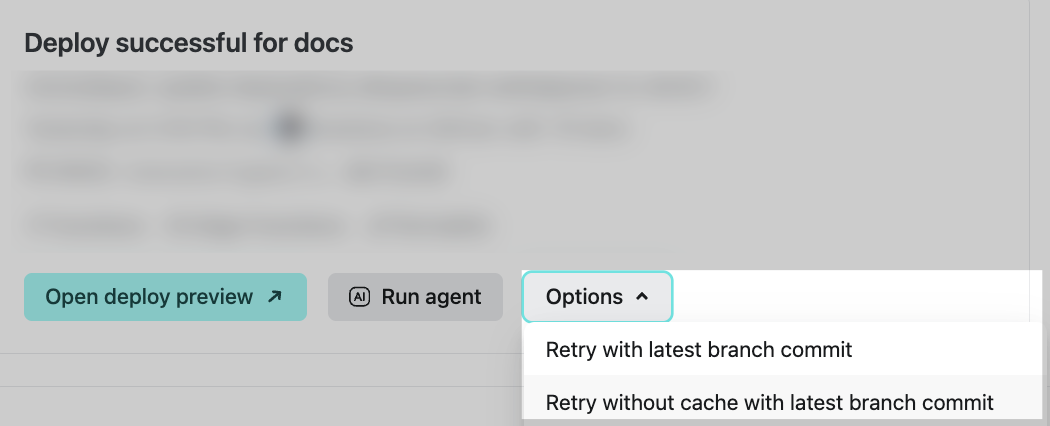
- Select Retry without cache with the latest branch commit to ensure your latest commits are deployed and that you're not encountering cache issues.
Domains and DNS errors
Section titled “Domains and DNS errors”Get more comprenhensive help from our domains and DNS troubleshooting docsdomainsThe web address people use to visit your site, such as yoursite.com.DNSThe system that translates a domain name like yoursite.com into the address computers use to find your site.. If you're getting a specific error you want more help with, let us know in the docs feedback form comments below.
Drag and drop deploy stuck "uploading" or "In progress"
Section titled “Drag and drop deploy stuck "uploading" or "In progress"”If your drag and drop deploy (or manual deploy) is stalled in Uploading or In progress status for more than 10 minutes, you may have an error with your project folder.
We recommend the following best practices for reliable manual drag and drop deploys:
- Deploys under 50MB work best. Individual files over 10MB are likely to cause your deploy to get stuck. For anything larger, try using Netlify’s Command Line Interface.
- You must have an index.html in the root of your project.
- Put all of your project assets in a folder (so, myfolder/index.html and myfolder/subdirectory/otherassets, etc).
- Use a computer with a reliable network connection. Any network hiccups can cause the deploy to get stuck.
- Use the latest version of a Chromium-based browser.
- Use a computer that has sufficient free memory - 4x your uncompressed site size is a good ballpark and more is better.
If your deploy fits those criteria and is still stuck after 10 minutes, you can try to deploy again right away by dragging and dropping your folder again. After 10 minutes, that older, stuck deploy will never publish, so you don’t need to worry about it interfering with your next try. If your deploy won’t get unstuck, consider trying deploys using Git or the CLI.
HTTPS errors
Section titled “HTTPS errors”Check out the SSL certificate errorsSSLThe technology that enables HTTPS by encrypting the connection to your site. section for more help.
Non-zero exit code
Section titled “Non-zero exit code”Your build log may show a non-zero exit code, which means your build failed, which means your deploy failed.
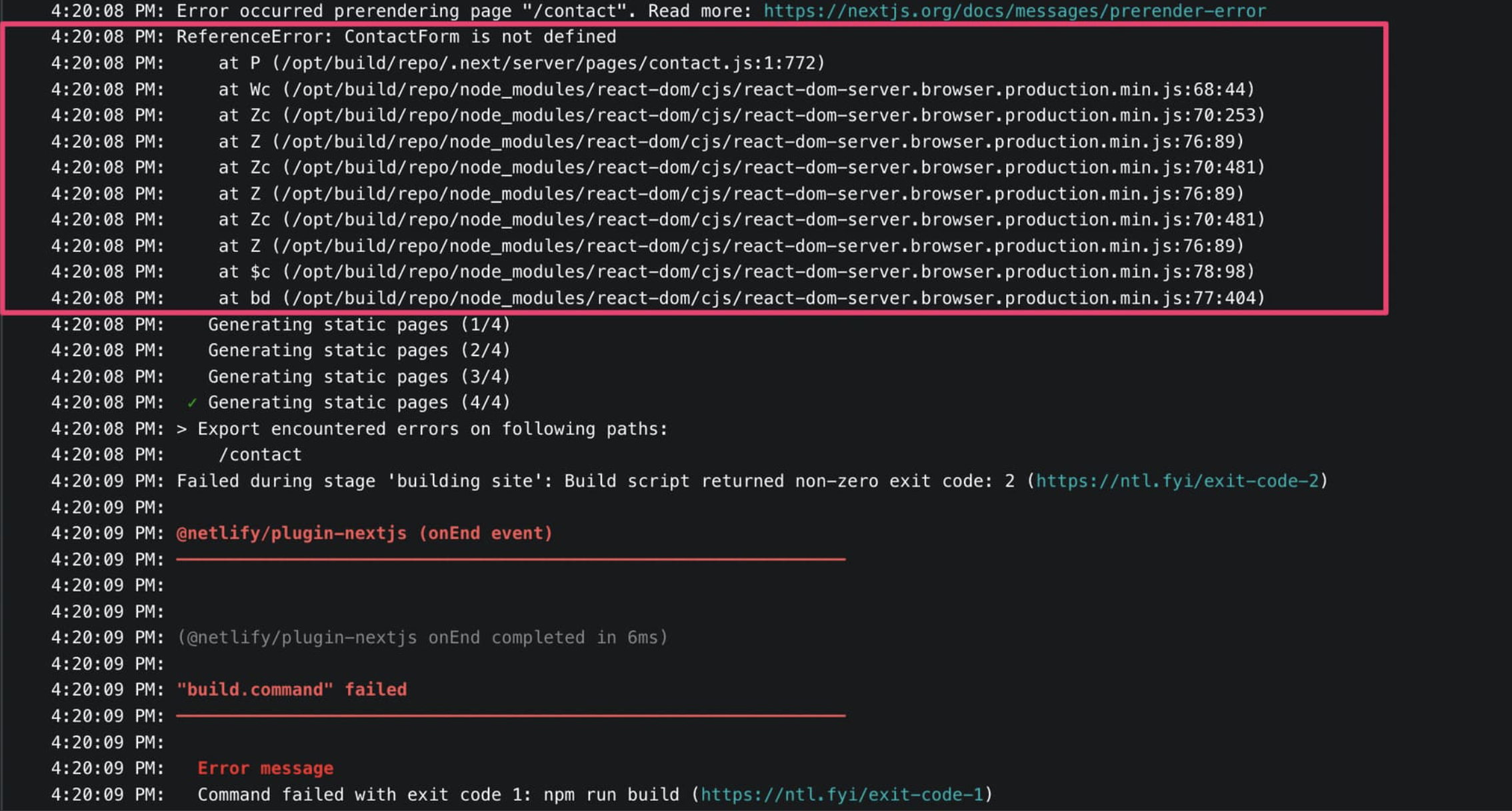
Bulid failed due to a user error: Build script returned non-zero exit code: 2Failing build: Failed to build siteIf you check your build log before the non-zero exit code, you can usually find more details about the reason for the failure.
To check your build log, go to your deploy details page and open the log:
- Go to your project overview dashboard and select Deploys.
- Choose your deploy that failed.
- Open your build log.
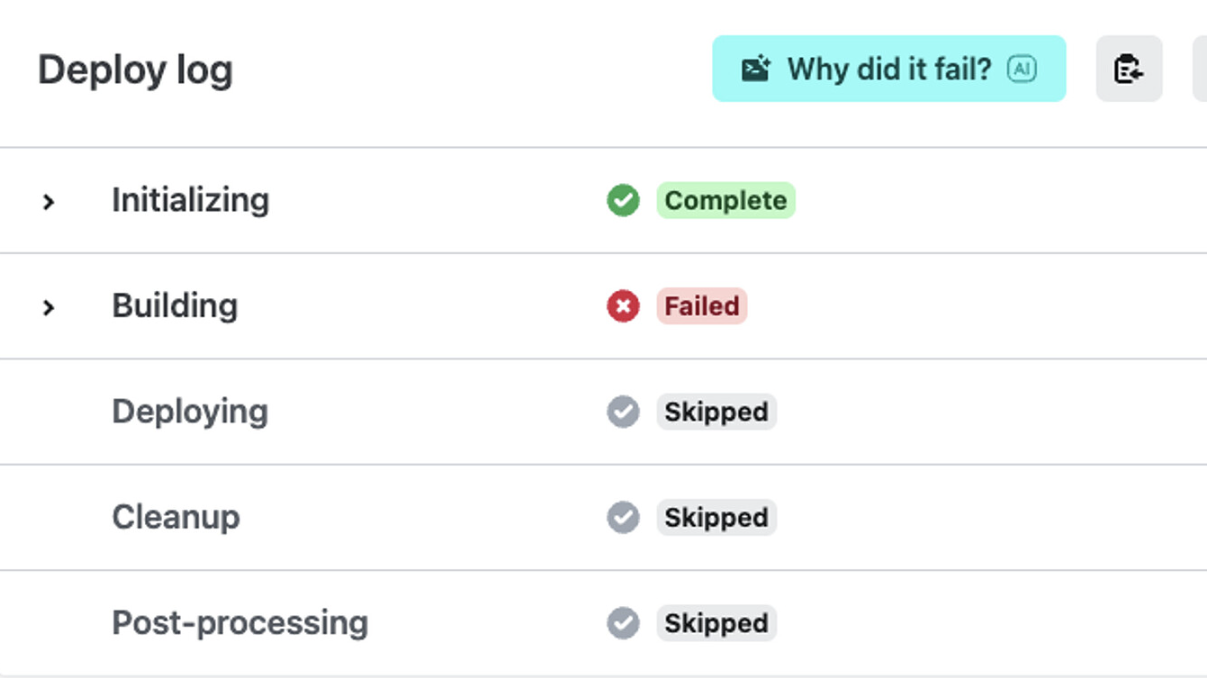
- Scroll in your build log to find the failure before the non-zero exit code.
Page not found error
Section titled “Page not found error”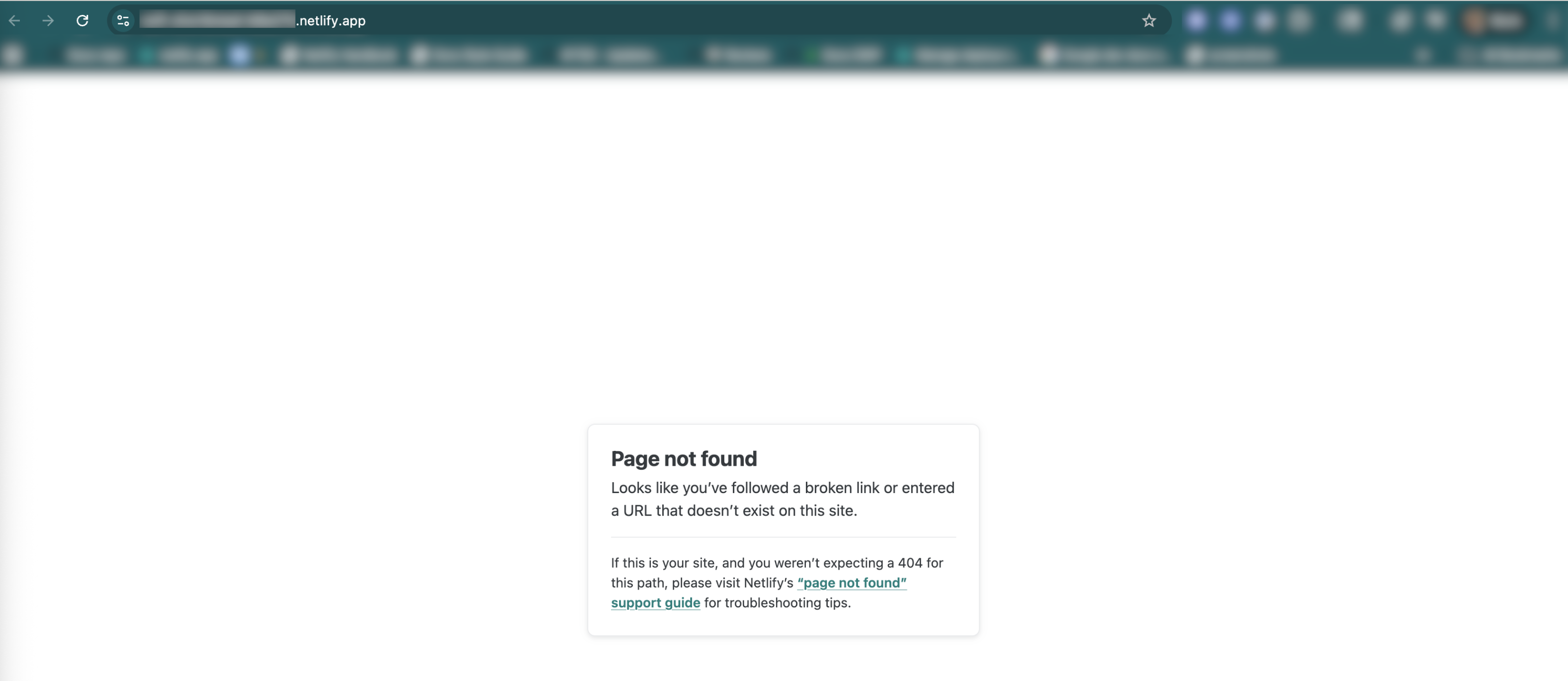
The most common reason for this error is missing an index.html file.
If you drag and drop your project folder and it has an index.html file in the root directory when your build settings expect this, your deploy will appear successful but you will find a page not found error.
You can add an empty index.html file to the root directory of your project to fix this error.
There can be other causes for this error. Learn more in our expanded "Page not found error" docs.
Payment error
Section titled “Payment error”Are you trying to enter a credit card into app.netlify.com but getting an error instead?
We recommend you try entering your credit card in an incognito window without any browser extensions enabled. We’ve seen ad-blocking-type browser plugins and other plugins inhibit our communication with our authenticationauthenticationThe process of verifying who someone is before letting them access your site. service, and create unpredictable behavior. Please test in an incognito window before you contact support.
If that doesn’t help, please reach out to Netlify Support.
Site doesn't have a secure URL with https
Section titled “Site doesn't have a secure URL with https”Check out the SSL certificate errors section for more help.
SSL certificate errors
Section titled “SSL certificate errors”To check your SSL certificate status:
- From your Project overview dashboard, go to Domain management > HTTPSHTTPSThe secure protocol, enabled by SSL, that encrypts data transferred between a browser and your site..
What is an SSL certificate?
Section titled “What is an SSL certificate?”An SSL certificate digitally verifies that a website is from a trusted source. Sites and apps with a valid SSL certificate have https in their URL instead of just http and are protected from certain types of attacks and security threats.
A project with HTTPS in the url also signals trust and security to site visitors and search engines.
When you add a custom domain to your project, Netlify helps you issue an SSL certificate.
Common SSL Certificate Errors
Section titled “Common SSL Certificate Errors”If you're seeing any of these error messages or issues, get more help from our SSL troubleshooting guide.
- "We could not provision a Let's Encrypt certificate for your custom domain"
- Certificate stuck on "Waiting on DNS propagation" for more than 48 hours
- "DNS verification failed" when provisioning certificate
- "Missing certificate" or certificate won't provision
- "Your domain doesn't appear to be served by Netlify"
- HTTPS not working or showing "connection not secure" warnings
- Certificate provisioning has been pending for over 24 hours
Did you find this doc useful?
Your feedback helps us improve our docs.