

Page not found error guide
Fix the page not found error so you can get your web project working.
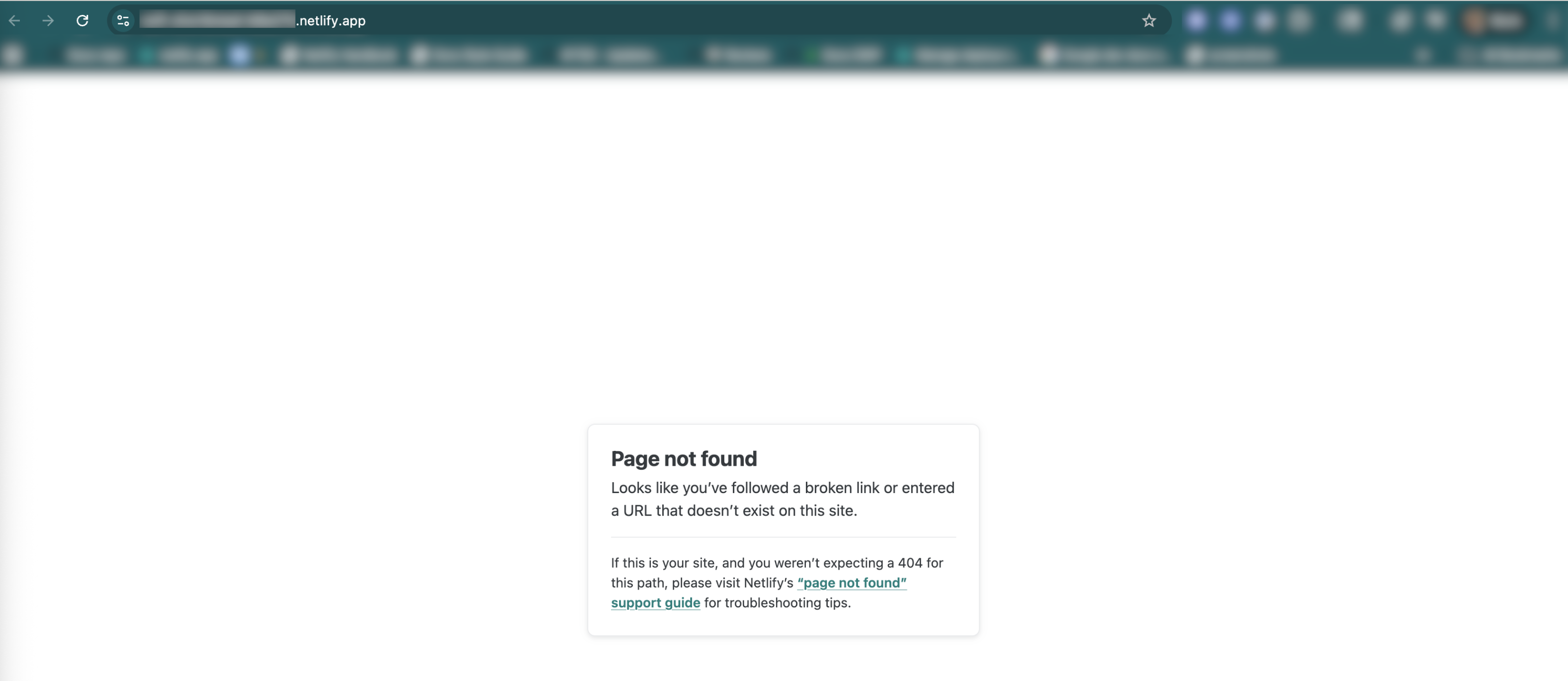
Page not found
Looks like you’ve followed a broken link or entered a URL that doesn’t exist on this site.
If this is your site, and you weren’t expecting a 404 for this path, please visit Netlify’s “page not found” support guide for troubleshooting tips.
Missing files
Section titled “Missing files”The most common cause of a page not found error is a missing file. Read on for possible missing files and how to fix this.
No index.html file
Section titled “No index.html file”Netlify requires some kind of index.html file to be present in the publish directory to serve your web project. If you don’t have one, create this file in your web directory and try again.
To check files from your deployed project, you can use the Deploy File Explorer:
- From your project overview, in the left sidebar, choose Deploys.
- Select your latest published production deploy. This will be the deploy that your production site/app is live at.
- Under your Deploy summary and Deploy log, review the file structure under Deploy File Explorer.
Incorrect publish directory or no publish directory
Section titled “Incorrect publish directory or no publish directory”Netlify requires a publish directory to be specified in your Netlify project settings.
To check your publish directory:
- Go to Project configuration Build settings.
- Choose Configure and enter your publish directory. If you’re not sure which directory, you can check your web framework’s guidelines or try using
publicordistas your publish directory.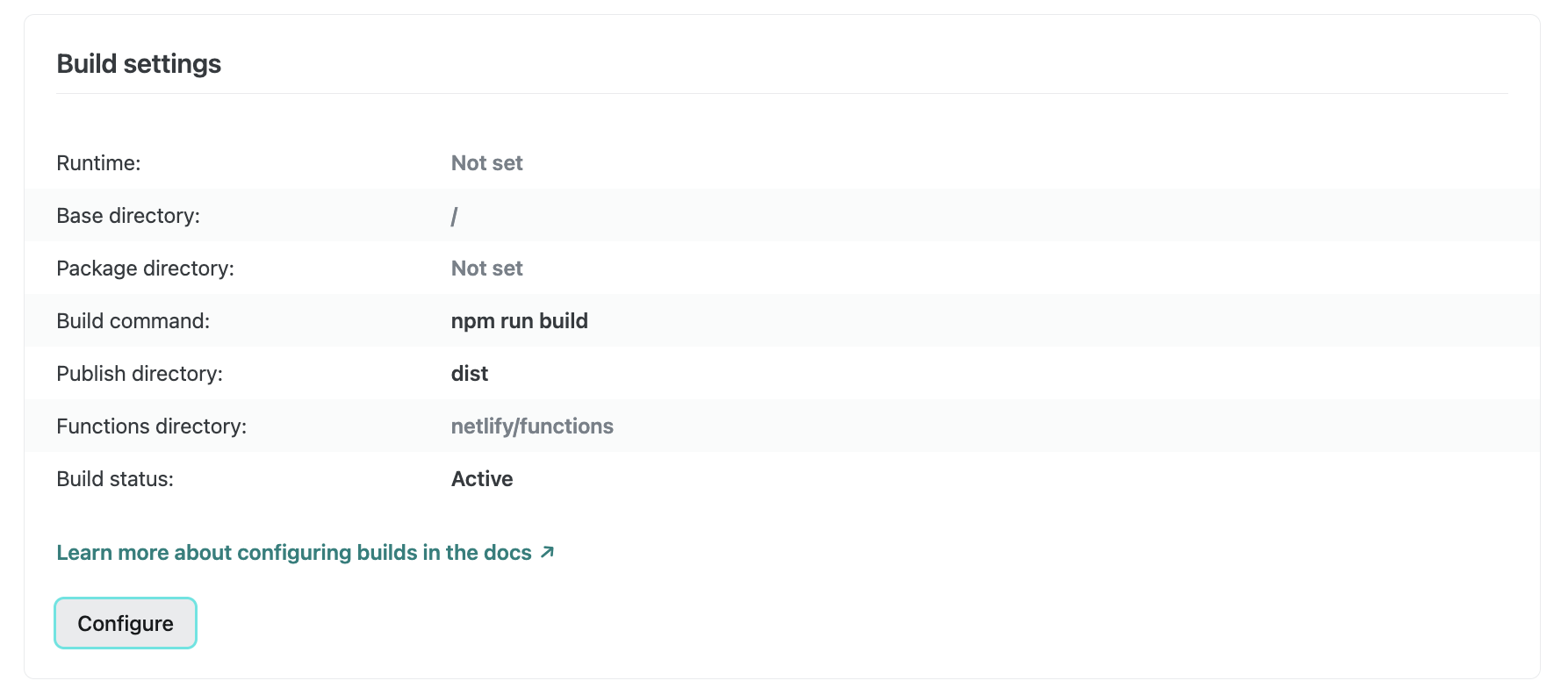
- Confirm your changes.
Check for missing files in your deploy
Section titled “Check for missing files in your deploy”To check for missing files in your deploy, use Netlify’s Deploy File Explorer.
For a long time, you’ve been able to download a zip file of your deploy in order to inspect the files output by your build on Netlify. However, this process was not always ideal because you would need to download the contents of the entire deploy even if you only wanted to inspect one file.
This request to generate the zip file was also prone to fail depending on how many files were in the deploy, and it would take a long time to download the whole thing before it was even ready to inspect.
That’s now a thing of the past. Netlify lets you browse the distribution files of your deploy like you would browse files on a file system.
Beneath the deploy log of every successful deploy, you can:
- Navigate through folders of your build output
- Download only the exact files you are looking for
- Perform a substring search on the file path of each asset to quickly find the resource you had in mind
This approach is much faster than downloading a zip file of the entire deploy. We’ve tested on deploys with over 100,000 files and it still holds up.
We’d love your feedback!
If you find this feature useful, please leave us a comment. We’d love to know what you think, and if you have any feedback to make this functionality even better, we’d love to hear that too.
Incorrect configuration or routing for your framework
Section titled “Incorrect configuration or routing for your framework”It’s possible your project is using a framework that is not routed correctly or set up correctly for use with Netlify.
We recommend you verify your routing configuration matches your deployment setup, such as your _redirects file or publish directory.
To check your publish directory:
- Go to Project configuration Build settings.
- Choose Configure and enter your publish directory. If you’re not sure which directory, you can check your web framework’s guidelines or try using
publicordistas your publish directory. - Confirm your changes.
Single Page Application redirect rule needed
Section titled “Single Page Application redirect rule needed”If your project is a Single Page Application (SPA), you may need to add a redirect rule to your _redirects file to ensure that all routes are handled by your SPA.
Add the following to your _redirects file:
/* /index.html 200Learn more from our Verified Support Guide.
Further support
Section titled “Further support”There are even more causes for a page not found error. Learn more about additional causes and troubleshooting tips in our Verified Support Guide on Page not found errors.
You can also reach out to Netlify Support for additional help at Netlify Support.
Did you find this doc useful?
Your feedback helps us improve our docs.