

Get started with Netlify
Deploy a demo project on Netlify to make it available on the web. Get to know some key features including Deploy Previews, rollbacks, Netlify Functions, environment variables, redirects, and Netlify Forms.
There are many ways to create a new site or app on Netlify, including through the Netlify UI, API, CLI, or through an AI site or app builder.
Add a new project to Netlify from your preferred workflow and starting point, whether you are starting from scratch with no code or bringing existing code.
Build a new project from scratch with the help of an AI agent directly from your Netlify dashboard.
To use this feature, you need a Credit-based pricing plan and must have enabled AI features.
To start a new project with an AI agent:
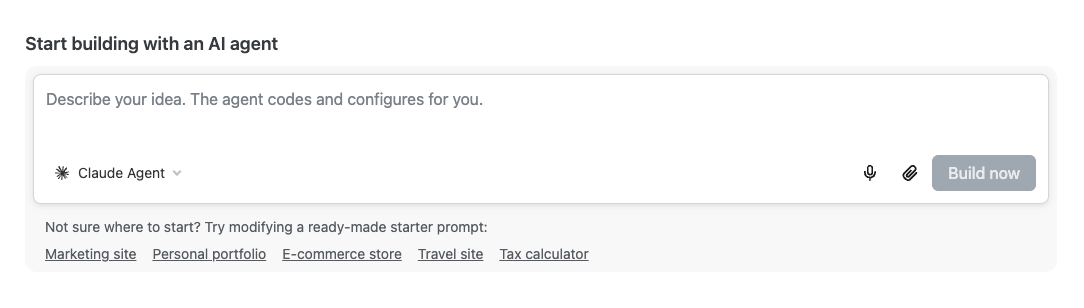
Next, you can continue building out your project using Agent Runners.
There are many ways to bring existing code to Netlify:
Publish your site or app to the web by dragging and dropping your project’s folder with your site files. Note this folder may be called your project’s public folder.
If you haven’t already, log in to your Netlify account at https://app.netlify.com/login. Make sure you’re signed in to the Netlify team where you want to manage your project.
Go to https://app.netlify.com/drop or scroll to the bottom of your team dashboard where all your team-owned projects will be listed.
Drag and drop your folder to the publisher spot in the Netlify UI.
Find your site published at the Preview URL ending in netlify.app. Your site should now be published on the web so you can share it with others. 🎉
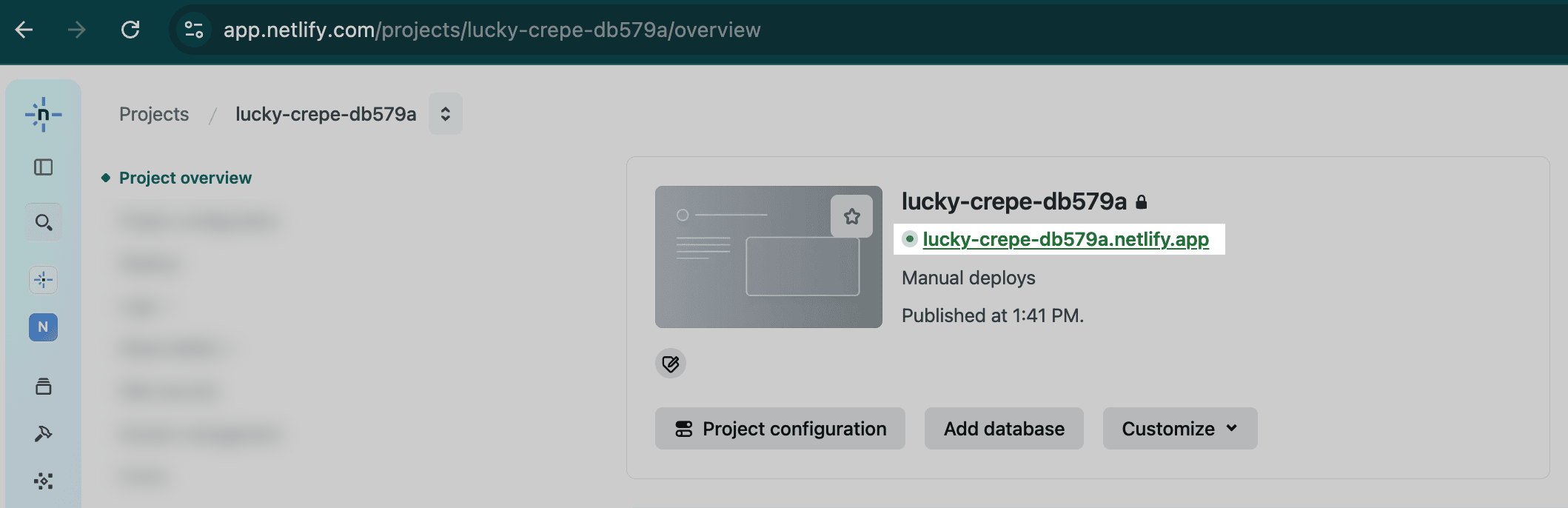
To customize your preview URL with a project name and to give your project an official name, select Customize under your Preview URL.
If you need to update a site that you created using drag and drop, update and rebuild your project locally. Then, drag the project’s updated output folder to the deploy dropzone at the bottom of the site’s Deploys page. This will start a new site deploy with the updated files. You can also use this functionality to manually update any site that is not connected to a Git repository.
Unzip your project zip file first. Make sure your project files are in a folder. Move your project files to a new folder if necessary.
You can drag your project’s build or output folder. This folder usually contains your project’s HTML, CSS, JS, and related built files and may also be called dist, build, or public. Drag this folder into the Deploy zone.
Check if your project can run locally. Sometimes you need to run your project to create the build or public output folder. You can also ask an AI assistant to help you test if your project runs locally. We recommend sharing Netlify context with your AI tool to help it understand how to build and deploy your project. Consider using the Netlify CLI to build and deploy your project and search your errors using Ask Netlify.
You can drag and drop your updated project folder into the Deploy zone to deploy your updated web project.
Learn more about iterating on projects published with Netlify Drop using Agent Runners in our Agent Runners docs.
You can import an existing project from a Git repository and deploy it on Netlify. When you import your existing project repository to Netlify, our continuous deployment will automatically update your site each time you push changes.
To import an existing project:
Go to your team’s Projects page, open the Add new project menu, and select Import an existing project.
Select the Git provider where your project is hosted.
Select your project’s existing repository.
Adjust site and build settings if necessary.
If your site uses a framework that Netlify is able to identify, Netlify will automatically populate the Build command and Publish directory with suggested values. If these starting values are incorrect, you can update them. Visit the Frameworks page for more information on commonly used build settings for frameworks.
Similarly, if Netlify detects that your site is a monorepo, you can select from one of the automatically detected sites and Netlify will automatically configure the Build command and Publish directory based on that selection. Learn more about configuring monorepos.
Select Deploy site.
If you have an existing project on your local machine that isn’t linked to a Git repository, you can manually deploy your site by using Netlify’s deploy dropzone.
Go to your team’s Projects page, open the Add new project menu, and select Deploy manually. Drag and drop your site’s output folder to the deploy dropzone to deploy your project. For guided help, check out the drag and drop publisher.
With Netlify CLI, you can:
netlify create to generate a new project from a prompt using AI, deploy it, and download the code locally.netlify init to create a new project on Netlify connected to an existing Git repository.netlify deploy to manually deploy a project without continuous deployment.netlify deploy --allow-anonymous to deploy without an account and claim ownership later.Use the Netlify API to create a new project.
With Netlify API, you can:
Get started with Netlify
Deploy a demo project on Netlify to make it available on the web. Get to know some key features including Deploy Previews, rollbacks, Netlify Functions, environment variables, redirects, and Netlify Forms.
Your feedback helps us improve our docs.