

For the complete Netlify documentation index, see llms.txt. Markdown versions of this page are available by appending .md to the URL. This page documents the settings you can customize to control how your functions are built, deployed, and executed, along with the default values that apply when you leave a setting unspecified.
Default values
Unless customized, every function deploys with:
| Setting | Default | Configurable? |
|---|---|---|
| Region | cmh (US East, Ohio) 1 | Yes — Region |
| Memory | 1024 MB | Yes — Memory or vCPU |
| Synchronous execution limit | 60 seconds | No |
| Scheduled execution limit | 30 seconds | No |
| Background execution limit | 15 minutes | No |
| Buffered request/response payload | 6 MB 2 | No |
| Streamed response payload | 20 MB | No |
| Background request/response payload | 256 KB | No |
- Sites created before October 4, 2023 may have a different default region. Check your current configuration in Project configuration Build & deploy Continuous deployment Functions region.
- Requests with binary payloads such as image uploads are Base64-encoded, which adds approximately 30% overhead — effectively reducing the binary request payload size limit to 4.5 MB.
Beyond these defaults, additional capabilities like Private Connectivity can be enabled by contacting your account manager.
Routing
Section titled “Routing”By default, every function is available at https://<YOUR DOMAIN>/.netlify/functions/<FUNCTION NAME>. Use the path property in the function's config to route it to one or more custom URLs.
import type { Config, Context } from "@netlify/functions"
export default async (req: Request, context: Context) => {  const { city, country } = context.params
  return new Response(`You're visiting ${city} in ${country}!`)}
export const config: Config = {  path: "/travel-guide/:city/:country",}
When you set a custom path, the function is only available at that path — not at the default /.netlify/functions/<name> URL.
Multiple paths
Section titled “Multiple paths”To configure multiple paths, set path as an array.
export const config: Config = { path: ["/cats", "/dogs"],}Path patterns
Section titled “Path patterns”path supports the web platform URLPattern syntax for wildcards and named groups. Named groups are exposed to the function on context.params.
export const config: Config = { path: ["/sale/*", "/item/:sku"],}Excluded paths
Section titled “Excluded paths”Use excludedPath to carve exceptions out of a path pattern. Accepts a single string or an array of strings, each starting with /.
export const config: Config = { excludedPath: ["/product/*.css", "/product/*.js"], path: "/product/*",}Prefer static files
Section titled “Prefer static files”By default, a function runs for any request to its configured paths regardless of whether static files exist there. To let static assets on the CDN win when they exist, set preferStatic: true.
export const config: Config = { path: ["/product/:sku", "/item/:sku"], preferStatic: true,}HTTP methods
Section titled “HTTP methods”By default, a function responds to every HTTP method. Use the method property to restrict it to specific methods.
export const config: Config = { method: ["GET", "POST"], path: "/items",}Region
Section titled “Region”Netlify offers several regions for deploying your serverless functions. You may want to customize the region for the following reasons:
- Optimize performance. Deploying serverless functions close to their data sources, such as a database or another backend service, can greatly reduce roundtrip time for data retrieval resulting in faster response times for your users.
- Ensure compliance. In some cases, data protection laws and industry-specific regulations may require that sensitive data processing happens within specific regions.
- Use Private Connectivity. Static IP addresses for Private Connectivity are available in only some regions.
Regions are identified by airport code. By default, Netlify deploys functions for new sites to cmh (Ohio) — a common choice for many database providers, which optimizes performance for most cases.
You can change the region through the Netlify UI to any of the following:
| Airport code | Region |
|---|---|
cmh | US East (Ohio) |
dub | EU (Ireland) |
fra | EU (Frankfurt) |
gru | South America (São Paulo) |
iad | US East (N. Virginia) |
lhr | EU (London) |
nrt | Asia Pacific (Tokyo) |
pdx | US West (Oregon) |
sfo | US West (N. California) |
sin | Asia Pacific (Singapore) |
syd | Asia Pacific (Sydney) |
yul | Canada (Central) |
In addition to the above self-serve regions, the following are available through support-assisted configuration:
| Airport code | Region |
|---|---|
cdg | EU (Paris) |
mxp | EU (Milan) |
If you want your site to use one of the above regions, please contact support.
From the Netlify dashboard
Section titled “From the Netlify dashboard”Setting the region through the Netlify UI applies to all functions on your site.
- Go to Project configuration Build & deploy Continuous deployment Functions region.
- Select Configure.
- Use the menu to select a new region.
- Confirm with Save.
- Redeploy your site to apply the new region configuration.
Old deploys will continue to use the region configuration from when they were deployed.
In code
Section titled “In code”If your project has functions that need to run in different regions — for example, one function that processes data close to a database in Dublin while the rest of your functions run in Ohio — you can override the region per function in code. The function-level region takes precedence over the site-level region set in the UI.
With in-source configuration:
import type { Config } from "@netlify/functions"
export default async (req: Request) => {  return new Response("Hello from Europe!")}
export const config: Config = {  path: "/eu-data",  region: "dub",}
With netlify.toml:
[functions.eu_data] region = "dub"When to set a region
Section titled “When to set a region”The cmh (Ohio) default is a deliberate choice. US East is centrally located for an international audience, has a broad provider ecosystem and gives most projects the lowest overall latency without any configuration. Overriding it has tradeoffs, so leave the default in place unless one of these applies:
- Your function talks to a database or backend service in another region, and you can measure the roundtrip savings.
- You have a compliance or data-residency requirement that pins processing to a specific region.
- Your audience is concentrated in one region and your compute dependencies (database, backend services) live in that same region.
A few constraints to know before you reach for config.region:
- Each function runs in exactly one region. You can't deploy the same function to multiple regions for geo-routing.
- If your project uses a framework adapter (e.g., Tanstack Start, Astro, Next.js) the function files are generated at build time and you can't add
export const configto them. Use the project-level UI setting instead, which applies to all functions in the project including the generated ones.
Memory or vCPU
Section titled “Memory or vCPU”By default, Netlify functions run with 1024 MB of memory and a proportional amount of compute. For workloads that need more resources to run reliably — such as processing large payloads or running AI inference — you can configure each function with either memory or vcpu.
Memory and vCPU scale together: pick more of one and you get more of the other. Set whichever maps more naturally onto how you think about your function — megabytes when memory pressure is the constraint, vCPUs when you care about compute — and Netlify sizes the other side automatically. The two are mutually exclusive; set one, not both.
With in-source configuration:
import type { Config } from "@netlify/functions"
export default async (req: Request) => {  return new Response("Doing more, faster")}
export const config: Config = {  memory: "2gb", // or memory: 2048  path: "/heavy",}
With netlify.toml:
[functions.heavy] memory = "2gb"Memory
Section titled “Memory”The memory property accepts either a number of megabytes or a human-friendly string with a unit ("2gb", "1024mb", case-insensitive). Allowed range: 1024 to 4096 MB.
The vcpu property accepts a number between 0.5 and 2.0. The endpoints map to:
vcpu: 0.5→ 1024 MBvcpu: 2.0→ 4096 MB
Values in between scale linearly.
When to set memory or vCPU
Section titled “When to set memory or vCPU”The 1024 MB default fits most functions, and raising it has a direct cost impact: function billing scales linearly with the configured size.
Treat memory and vcpu as deliberate levers, reaching for them when:
- You know the workload is memory- or compute-intensive — for example, local AI inference, image or PDF manipulation, large JSON or CSV processing, or anything CPU-bound.
- You're hitting out-of-memory errors or timeouts caused by the function's own work, rather than by waiting on an external service or database.
If you're unsure, start with the default and only tune after you have a measurement that justifies the change.
Bundle
Section titled “Bundle”For granular control over which files are bundled in your executable function artifacts, use the netlify.toml properties external_node_modules and included_files. Visit the file-based configuration doc for details.
[functions]
  # Flags "package-1" as an external node module for all functions.  external_node_modules = ["package-1"]
  # Includes all Markdown files inside the "files/" directory.  included_files = ["files/*.md"]
Node.js version for runtime
Section titled “Node.js version for runtime”For all Node.js functions deployed on or after May 15, 2023, the default functions runtime is based on the Node.js version used for the build. The Node.js version used for the build must be a valid AWS Lambda runtime for Node.js that isn't set to be deprecated in the next two months.
If the build uses a version of Node.js that does not meet these conditions, then the functions runtime uses a fallback default version of Node.js 24.
You can override the default to any valid AWS Lambda runtime for Node.js that isn't set to be deprecated in the next two months. Do so by completing the following steps.
-
In the Netlify UI, set the environment variable
AWS_LAMBDA_JS_RUNTIMEto the desired version. For example, to use Node.js 24 for all future functions deployed, set the variable value tonodejs24.x. -
Redeploy your site to apply the new runtime version.
Note that this environment variable must be set using the Netlify UI, CLI, or API, and not with a Netlify configuration file (netlify.toml).
Module format
Section titled “Module format”Node.js supports two distinct module formats with different capabilities and APIs: ECMAScript modules (or ES modules), an official standard format for JavaScript packages, and CommonJS, a legacy format specific to Node.js.
The module format for each function is determined by the file extension of its entry file:
- Files with
.mtsor.mjsextensions are always executed as ES modules. - Files with
.ctsor.cjsextensions are always executed as CommonJS. - Files with
.tsor.jsextensions are executed as ES modules if the closestpackage.jsonhas"type": "module", otherwise as CommonJS.
Choosing a module format has implications for how you import npm packages:
- CommonJS functions cannot use a static
importfor npm packages written as ES modules; use a dynamic import instead. - ES module functions cannot use named imports for npm packages written in CommonJS (for example,
import { kebabCase } from "lodash"); use a default import (import _ from "lodash"). - In ES modules, Node.js built-ins like
__dirnameand__filenameare not available; useimport.meta.urlinstead.
Default values
Unless customized, every function deploys with:
| Setting | Default | Configurable? |
|---|---|---|
| Region | cmh (US East, Ohio) 1 | Yes — Region |
| Memory | 1024 MB | Yes — Memory or vCPU |
| Synchronous execution limit | 60 seconds | No |
| Scheduled execution limit | 30 seconds | No |
| Background execution limit | 15 minutes | No |
| Buffered request/response payload | 6 MB 2 | No |
| Streamed response payload | 20 MB | No |
| Background request/response payload | 256 KB | No |
- Sites created before October 4, 2023 may have a different default region. Check your current configuration in Project configuration Build & deploy Continuous deployment Functions region.
- Requests with binary payloads such as image uploads are Base64-encoded, which adds approximately 30% overhead — effectively reducing the binary request payload size limit to 4.5 MB.
Beyond these defaults, additional capabilities like Private Connectivity can be enabled by contacting your account manager.
Directory
Section titled “Directory”Netlify will access the functions directory during every build, preparing and deploying each supported code file as a function. The default directory is YOUR_BASE_DIRECTORY/netlify/functions. You can customize the directory using the Netlify UI or file-based configuration.
- In the Netlify UI, go to Project configuration Build & deploy Continuous deployment Build settings and select Configure. In the Functions directory field, enter a path to the directory in your repository where you want to store your functions.
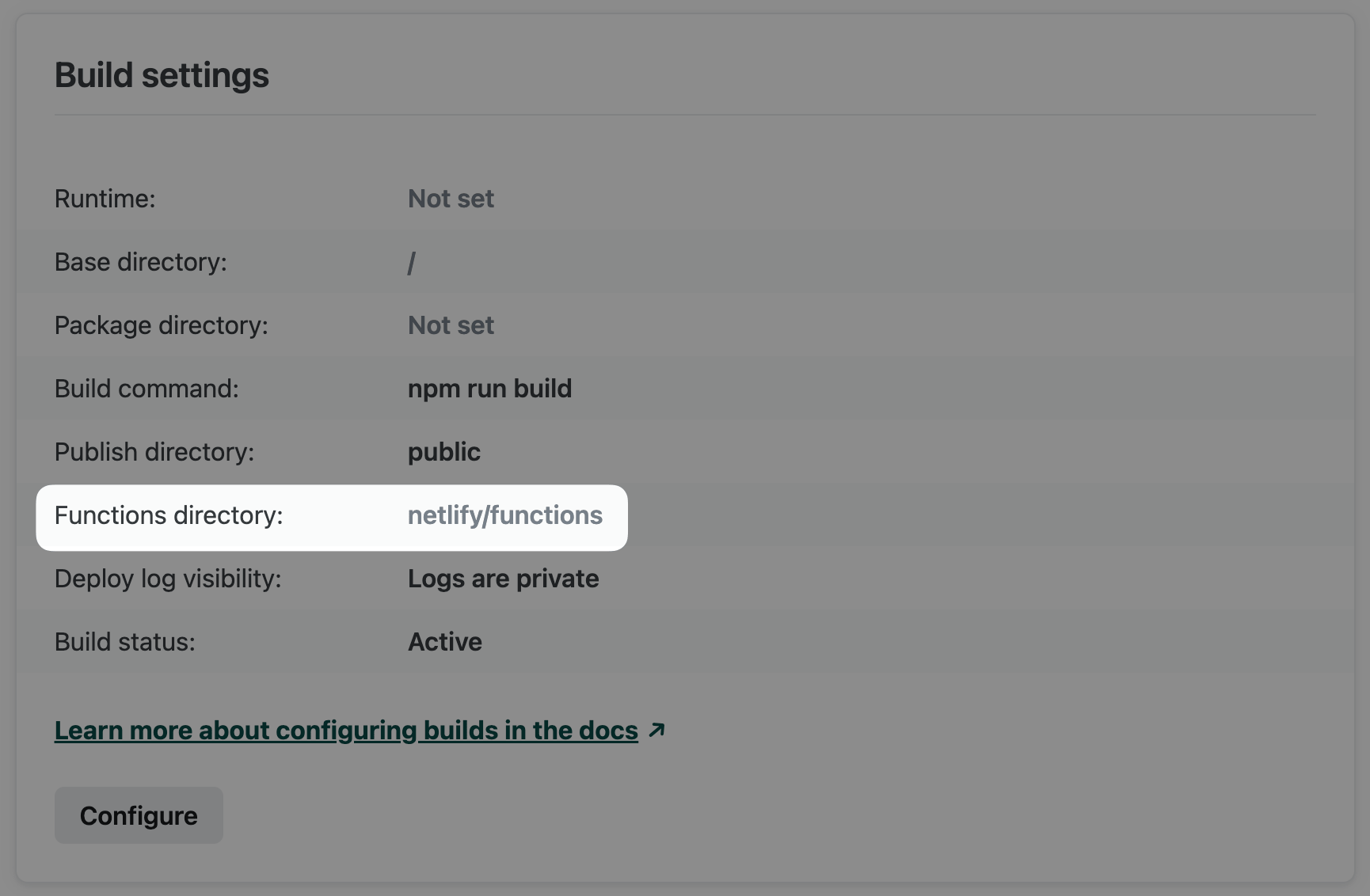
- Alternatively, add the following to
netlify.tomlfor file-based configuration.
[functions] directory = "my_functions"Settings in netlify.toml override settings in the Netlify UI.
For both methods, the path is an absolute path relative to the site's base directory in your repository. To help keep your site secure, make sure your functions directory is outside of your publish directory so that your source files aren't deployed as part of your site.
Routing
Section titled “Routing”By default, every function is available at https://<YOUR DOMAIN>/.netlify/functions/<FUNCTION NAME>. Use the path property in the function's config to route it to one or more custom URLs.
export default async (req, context) => {  const { city, country } = context.params
  return new Response(`You're visiting ${city} in ${country}!`)}
export const config = {  path: "/travel-guide/:city/:country",}
When you set a custom path, the function is only available at that path — not at the default /.netlify/functions/<name> URL.
Multiple paths
Section titled “Multiple paths”To configure multiple paths, set path as an array.
export const config = { path: ["/cats", "/dogs"],}Path patterns
Section titled “Path patterns”path supports the web platform URLPattern syntax for wildcards and named groups. Named groups are exposed to the function on context.params.
export const config = { path: ["/sale/*", "/item/:sku"],}Excluded paths
Section titled “Excluded paths”Use excludedPath to carve exceptions out of a path pattern. Accepts a single string or an array of strings, each starting with /.
export const config = { excludedPath: ["/product/*.css", "/product/*.js"], path: "/product/*",}Prefer static files
Section titled “Prefer static files”By default, a function runs for any request to its configured paths regardless of whether static files exist there. To let static assets on the CDN win when they exist, set preferStatic: true.
export const config = { path: ["/product/:sku", "/item/:sku"], preferStatic: true,}HTTP methods
Section titled “HTTP methods”By default, a function responds to every HTTP method. Use the method property to restrict it to specific methods.
export const config = { method: ["GET", "POST"], path: "/items",}Region
Section titled “Region”Netlify offers several regions for deploying your serverless functions. You may want to customize the region for the following reasons:
- Optimize performance. Deploying serverless functions close to their data sources, such as a database or another backend service, can greatly reduce roundtrip time for data retrieval resulting in faster response times for your users.
- Ensure compliance. In some cases, data protection laws and industry-specific regulations may require that sensitive data processing happens within specific regions.
- Use Private Connectivity. Static IP addresses for Private Connectivity are available in only some regions.
Regions are identified by airport code. By default, Netlify deploys functions for new sites to cmh (Ohio) — a common choice for many database providers, which optimizes performance for most cases.
You can change the region through the Netlify UI to any of the following:
| Airport code | Region |
|---|---|
cmh | US East (Ohio) |
dub | EU (Ireland) |
fra | EU (Frankfurt) |
gru | South America (São Paulo) |
iad | US East (N. Virginia) |
lhr | EU (London) |
nrt | Asia Pacific (Tokyo) |
pdx | US West (Oregon) |
sfo | US West (N. California) |
sin | Asia Pacific (Singapore) |
syd | Asia Pacific (Sydney) |
yul | Canada (Central) |
In addition to the above self-serve regions, the following are available through support-assisted configuration:
| Airport code | Region |
|---|---|
cdg | EU (Paris) |
mxp | EU (Milan) |
If you want your site to use one of the above regions, please contact support.
In the UI
Section titled “In the UI”Setting the region through the Netlify UI applies to all functions on your site.
- Go to Project configuration Build & deploy Continuous deployment Functions region.
- Select Configure.
- Use the menu to select a new region.
- Confirm with Save.
- Redeploy your site to apply the new region configuration.
Old deploys will continue to use the region configuration from when they were deployed.
In code
Section titled “In code”If your project has functions that need to run in different regions — for example, one function that processes data close to a database in Dublin while the rest of your functions run in Ohio — you can override the region per function in code. The function-level region takes precedence over the site-level region set in the UI.
With in-source configuration:
export default async (req) => {  return new Response("Hello from Europe!")}
export const config = {  path: "/eu-data",  region: "dub",}
With netlify.toml:
[functions.eu_data] region = "dub"When to set a region
Section titled “When to set a region”The cmh (Ohio) default is a deliberate choice. US East is centrally located for an international audience, has a broad provider ecosystem and gives most projects the lowest overall latency without any configuration. Overriding it has tradeoffs, so leave the default in place unless one of these applies:
- Your function talks to a database or backend service in another region, and you can measure the roundtrip savings.
- You have a compliance or data-residency requirement that pins processing to a specific region.
- Your audience is concentrated in one region and your compute dependencies (database, backend services) live in that same region.
A few constraints to know before you reach for config.region:
- Each function runs in exactly one region. You can't deploy the same function to multiple regions for geo-routing.
- If your project uses a framework adapter (e.g., Tanstack Start, Astro, Next.js) the function files are generated at build time and you can't add
export const configto them. Use the project-level UI setting instead, which applies to all functions in the project including the generated ones.
Memory or vCPU
Section titled “Memory or vCPU”By default, Netlify functions run with 1024 MB of memory and a proportional amount of compute. For workloads that need more resources to run reliably — such as processing large payloads or running AI inference — you can configure each function with either memory or vcpu.
Memory and vCPU scale together: pick more of one and you get more of the other. Set whichever maps more naturally onto how you think about your function — megabytes when memory pressure is the constraint, vCPUs when you care about compute — and Netlify sizes the other side automatically. The two are mutually exclusive; set one, not both.
With in-source configuration:
export default async (req) => {  return new Response("Doing more, faster")}
export const config = {  memory: "2gb", // or memory: 2048  path: "/heavy",}
With netlify.toml:
[functions.heavy] memory = "2gb"Memory
Section titled “Memory”The memory property accepts either a number of megabytes or a human-friendly string with a unit ("2gb", "1024mb", case-insensitive). Allowed range: 1024 to 4096 MB.
The vcpu property accepts a number between 0.5 and 2.0. The endpoints map to:
vcpu: 0.5→ 1024 MBvcpu: 2.0→ 4096 MB
Values in between scale linearly.
When to set memory or vCPU
Section titled “When to set memory or vCPU”The 1024 MB default fits most functions, and raising it has a direct cost impact: function billing scales linearly with the configured size.
Treat memory and vcpu as deliberate levers, reaching for them when:
- You know the workload is memory- or compute-intensive — for example, local AI inference, image or PDF manipulation, large JSON or CSV processing, or anything CPU-bound.
- You're hitting out-of-memory errors or timeouts caused by the function's own work, rather than by waiting on an external service or database.
If you're unsure, start with the default and only tune after you have a measurement that justifies the change.
Bundle
Section titled “Bundle”To optimize bundling time and artifact size, you can have Netlify use esbuild for bundling your JavaScript functions. Enable this in netlify.toml.
[functions] node_bundler = "esbuild"For granular control over which files are bundled in your executable function artifacts, use the netlify.toml properties external_node_modules and included_files. Visit the file-based configuration doc for details.
[functions]
  # Flags "package-1" as an external node module for all functions.  external_node_modules = ["package-1"]
  # Includes all Markdown files inside the "files/" directory.  included_files = ["files/*.md"]
Node.js version for runtime
Section titled “Node.js version for runtime”For all Node.js functions deployed on or after May 15, 2023, the default functions runtime is based on the Node.js version used for the build. The Node.js version used for the build must be a valid AWS Lambda runtime for Node.js that isn't set to be deprecated in the next two months.
If the build uses a version of Node.js that does not meet these conditions, then the functions runtime uses a fallback default version of Node.js 24.
You can override the default to any valid AWS Lambda runtime for Node.js that isn't set to be deprecated in the next two months. Do so by completing the following steps.
-
In the Netlify UI, set the environment variable
AWS_LAMBDA_JS_RUNTIMEto the desired version. For example, to use Node.js 20 for all future functions deployed, set the variable value tonodejs20.x. -
Redeploy your site to apply the new runtime version.
Note that this environment variable must be set using the Netlify UI, CLI, or API, and not with a Netlify configuration file (netlify.toml).
Module format
Section titled “Module format”Node.js supports two distinct module formats with different capabilities and APIs: ECMAScript modules (or ES modules), an official standard format for JavaScript packages, and CommonJS, a legacy format specific to Node.js.
The module format for each function is determined by the file extension of its entry file:
- Files with
.mtsor.mjsextensions are always executed as ES modules. - Files with
.ctsor.cjsextensions are always executed as CommonJS. - Files with
.tsor.jsextensions are executed as ES modules if the closestpackage.jsonhas"type": "module", otherwise as CommonJS.
Choosing a module format has implications for how you import npm packages:
- CommonJS functions cannot use a static
importfor npm packages written as ES modules; use a dynamic import instead. - ES module functions cannot use named imports for npm packages written in CommonJS (for example,
import { kebabCase } from "lodash"); use a default import (import _ from "lodash"). - In ES modules, Node.js built-ins like
__dirnameand__filenameare not available; useimport.meta.urlinstead.
Default values
Unless customized, every function deploys with:
| Setting | Default | Configurable? |
|---|---|---|
| Region | cmh (US East, Ohio) 1 | Yes — Region |
| Memory | 1024 MB | Yes — Memory or vCPU |
| Synchronous execution limit | 60 seconds | No |
| Scheduled execution limit | 30 seconds | No |
| Background execution limit | 15 minutes | No |
| Buffered request/response payload | 6 MB 2 | No |
| Streamed response payload | 20 MB | No |
| Background request/response payload | 256 KB | No |
- Sites created before October 4, 2023 may have a different default region. Check your current configuration in Project configuration Build & deploy Continuous deployment Functions region.
- Requests with binary payloads such as image uploads are Base64-encoded, which adds approximately 30% overhead — effectively reducing the binary request payload size limit to 4.5 MB.
Beyond these defaults, additional capabilities like Private Connectivity can be enabled by contacting your account manager.
Directory
Section titled “Directory”Netlify will access the functions directory during every build, preparing and deploying each supported code file as a function. The default directory is YOUR_BASE_DIRECTORY/netlify/functions. You can customize the directory using the Netlify UI or file-based configuration.
- In the Netlify UI, go to Project configuration Build & deploy Continuous deployment Build settings and select Configure. In the Functions directory field, enter a path to the directory in your repository where you want to store your functions.
- Alternatively, add the following to
netlify.tomlfor file-based configuration.
[functions] directory = "my_functions"Settings in netlify.toml override settings in the Netlify UI.
For both methods, the path is an absolute path relative to the site's base directory in your repository. To help keep your site secure, make sure your functions directory is outside of your publish directory so that your source files aren't deployed as part of your site.
Routing
Section titled “Routing”By default, every function is available at https://<YOUR DOMAIN>/.netlify/functions/<FUNCTION NAME>. To route a function to a custom URL, configure it in netlify.toml. Routing for Go functions is configured exclusively via netlify.toml.
[[redirects]] from = "/travel-guide/*" to = "/.netlify/functions/travel-guide" status = 200For more advanced routing — wildcards, query parameters, language detection, role-based rules — see the redirects documentation.
Region
Section titled “Region”Netlify offers several regions for deploying your serverless functions. You may want to customize the region for the following reasons:
- Optimize performance. Deploying serverless functions close to their data sources, such as a database or another backend service, can greatly reduce roundtrip time for data retrieval resulting in faster response times for your users.
- Ensure compliance. In some cases, data protection laws and industry-specific regulations may require that sensitive data processing happens within specific regions.
- Use Private Connectivity. Static IP addresses for Private Connectivity are available in only some regions.
Regions are identified by airport code. By default, Netlify deploys functions for new sites to cmh (Ohio) — a common choice for many database providers, which optimizes performance for most cases.
You can change the region through the Netlify UI to any of the following:
| Airport code | Region |
|---|---|
cmh | US East (Ohio) |
dub | EU (Ireland) |
fra | EU (Frankfurt) |
gru | South America (São Paulo) |
iad | US East (N. Virginia) |
lhr | EU (London) |
nrt | Asia Pacific (Tokyo) |
pdx | US West (Oregon) |
sfo | US West (N. California) |
sin | Asia Pacific (Singapore) |
syd | Asia Pacific (Sydney) |
yul | Canada (Central) |
In addition to the above self-serve regions, the following are available through support-assisted configuration:
| Airport code | Region |
|---|---|
cdg | EU (Paris) |
mxp | EU (Milan) |
If you want your site to use one of the above regions, please contact support.
In the UI
Section titled “In the UI”Setting the region through the Netlify UI applies to all functions on your site.
- Go to Project configuration Build & deploy Continuous deployment Functions region.
- Select Configure.
- Use the menu to select a new region.
- Confirm with Save.
- Redeploy your site to apply the new region configuration.
Old deploys will continue to use the region configuration from when they were deployed.
In code
Section titled “In code”If your project has functions that need to run in different regions — for example, one function that processes data close to a database in Dublin while the rest of your functions run in Ohio — you can override the region per function in netlify.toml. The function-level region takes precedence over the site-level region set in the UI.
[functions.eu_data] region = "dub"When to set a region
Section titled “When to set a region”The cmh (Ohio) default is a deliberate choice. US East is centrally located for an international audience, has a broad provider ecosystem and gives most projects the lowest overall latency without any configuration. Overriding it has tradeoffs, so leave the default in place unless one of these applies:
- Your function talks to a database or backend service in another region, and you can measure the roundtrip savings.
- You have a compliance or data-residency requirement that pins processing to a specific region.
- Your audience is concentrated in one region and your compute dependencies (database, backend services) live in that same region.
A few constraints to know before you reach for region:
- Each function runs in exactly one region. You can't deploy the same function to multiple regions for geo-routing.
- If your project uses a framework adapter (e.g., Tanstack Start, Astro, Next.js) the function files are generated at build time and you can't add
export const configto them. Use the project-level UI setting instead, which applies to all functions in the project including the generated ones.
Memory or vCPU
Section titled “Memory or vCPU”By default, Netlify functions run with 1024 MB of memory and a proportional amount of compute. For workloads that need more resources to run reliably — such as processing large payloads or running AI inference — you can configure each function with either memory or vcpu.
Memory and vCPU scale together: pick more of one and you get more of the other. Set whichever maps more naturally onto how you think about your function — megabytes when memory pressure is the constraint, vCPUs when you care about compute — and Netlify sizes the other side automatically. The two are mutually exclusive; set one, not both.
Configure per-function resources in netlify.toml:
[functions.heavy] memory = "2gb" # or: vcpu = 1.5Memory
Section titled “Memory”The memory property accepts either a number of megabytes or a human-friendly string with a unit ("2gb", "1024mb", case-insensitive). Allowed range: 1024 to 4096 MB.
The vcpu property accepts a number between 0.5 and 2.0. The endpoints map to:
vcpu: 0.5→ 1024 MBvcpu: 2.0→ 4096 MB
Values in between scale linearly.
When to set memory or vCPU
Section titled “When to set memory or vCPU”The 1024 MB default fits most functions, and raising it has a direct cost impact: function billing scales linearly with the configured size.
Treat memory and vcpu as deliberate levers, reaching for them when:
- You know the workload is memory- or compute-intensive — for example, local AI inference, image or PDF manipulation, large JSON or CSV processing, or anything CPU-bound.
- You're hitting out-of-memory errors or timeouts caused by the function's own work, rather than by waiting on an external service or database.
If you're unsure, start with the default and only tune after you have a measurement that justifies the change.
Go version for builds
Section titled “Go version for builds”The Go version used in the deployment pipeline is determined by your site's build image.
To modify the Go version used for your builds, change the build image for your site at Project configuration Build & deploy Continuous Deployment Build image selection.
Directory
Section titled “Directory”Netlify will access the functions directory during every build, preparing and deploying each supported code file as a function. The default directory is YOUR_BASE_DIRECTORY/netlify/functions. You can customize the directory using the Netlify UI or file-based configuration.
- In the Netlify UI, go to Project configuration Build & deploy Continuous deployment Build settings and select Configure. In the Functions directory field, enter a path to the directory in your repository where you want to store your functions.
- Alternatively, add the following to
netlify.tomlfor file-based configuration.
[functions] directory = "my_functions"Settings in netlify.toml override settings in the Netlify UI.
For both methods, the path is an absolute path relative to the site's base directory in your repository. To help keep your site secure, make sure your functions directory is outside of your publish directory so that your source files aren't deployed as part of your site.
Did you find this doc useful?
Your feedback helps us improve our docs.