

For the complete Netlify documentation index, see llms.txt. Markdown versions of any documentation page are available by appending .md to its URL. Your production site or app can support more than one domain through domain aliases, redirects, subdomains, and more.
Find the domains associated with your site or app in the Domain management section of your site configuration.
Manage domains for your production site
Section titled “Manage domains for your production site”You can find the domains for your production site at Domain management Production domains.
Manage domains for your team’s sites
Section titled “Manage domains for your team’s sites”From your Team Overview’s domains list, you can:
- review your domain’s DNS records (if applicable)
- review Netlify name servers for your domain
- transfer a domain between two team accounts you own
- delete DNS zones
To find your Team Overview’s domains list:
- Go to your Netlify Team dashboard.
- From your project dashboard, in the top left, choose Projects next to your project name.
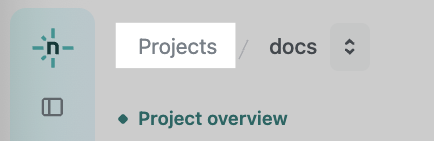
- From your project dashboard, in the top left, choose Projects next to your project name.
- Select DNS from the left sidebar.
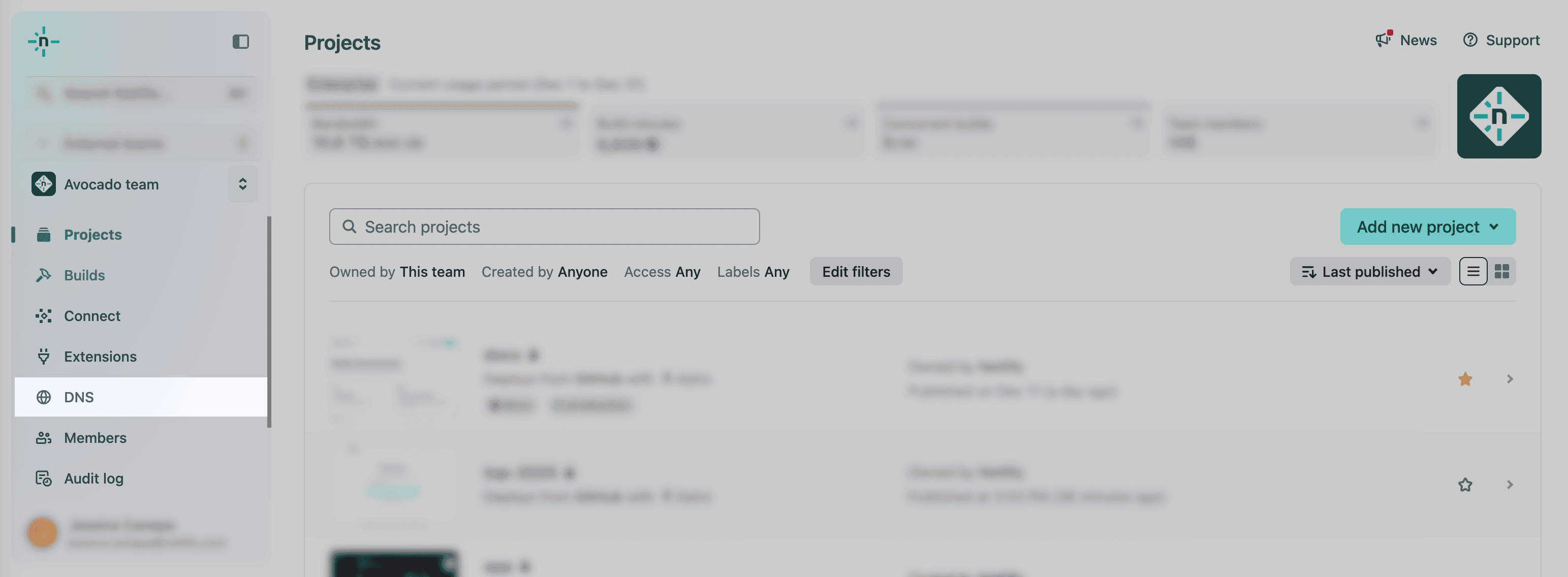
- Next, select a domain from the domains list for your team.
You can find your domain’s DNS records (if applicable) and Netlify name servers.
For more help reviewing DNS records, check out our docs on Managing DNS records.
Apex domains and www subdomains
Section titled “Apex domains and www subdomains”When you assign an apex domain (eg. petsofnetlify.com) or a www subdomain (eg. www.petsofnetlify.com) as the primary domain for your site, two entries are added to the Production domains panel:
- one entry for the apex domain, and
- one entry for the
wwwsubdomain.
The primary domain is the custom domain you entered. The other entry is for the alternative domain that gets redirected automatically to the primary domain.
- If you set the
wwwsubdomain as your primary domain, Netlify will automatically redirect the apex domain to thewwwsubdomain. - If you set the apex domain as your primary domain, Netlify will automatically redirect the
wwwsubdomain to the apex domain.
If you’re using external DNS, we strongly recommend setting the www subdomain (or another subdomain) as your primary domain. If you want to set an apex domain as your primary domain, we recommend using Netlify DNS. Our blog post How to Set Up Netlify DNS has more details on these recommendations.
Branch subdomains
Section titled “Branch subdomains”This feature requires Netlify DNS.
Netlify can generate a branch subdomain for specified branch deploys using your site's primary custom domain. The resulting branch subdomains use the syntax branchname.yourcustomdomain.com. For example, if your custom domain is example.com and your branch is staging, you can access the latest deploy of that branch at staging.example.com.
To use this feature, you must first enable branch deploys in your site's deploy settings and have at least one deployed branch. You can then configure branch subdomains in Domain management Branch subdomains.
Learn more about branch subdomains and branch deploys.
Set up Netlify DNS for branch subdomains
Section titled “Set up Netlify DNS for branch subdomains”If you want to use a custom domain in your branch subdomain that is not already delegated to Netlify DNS, you must delegate your custom domain to Netlify's name servers.
To set up Netlify DNS for branch subdomains:
-
Go to Domain management Branch subdomains and select New subdomain.
-
If your domain doesn't already use Netlify DNS, you'll see a panel displaying the Netlify name servers for your domain. These are in a format similar to
dns1.p01.nsone.net. -
Log in to your domain registrar (where you bought and registered your domain) and find their settings for updating name servers.
-
Replace your current name servers with the Netlify name servers displayed in the Netlify UI.
-
Save your settings at your domain registrar.
Did you find this doc useful?
Your feedback helps us improve our docs.