

For the complete Netlify documentation index, see llms.txt. Markdown versions of any documentation page are available by appending .md to its URL. You can manage your Netlify support requests directly from the Netlify dashboard. Create a ticket, follow its progress, review any issues across your projects, and reply to the support team without leaving Netlify. Team Owners can also view tickets created by other members of their team.
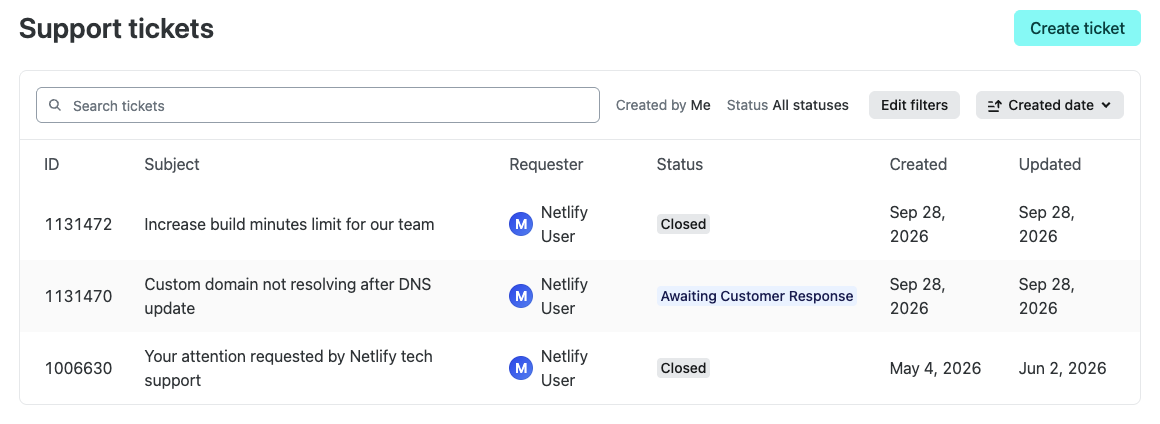
View support tickets
Section titled “View support tickets”The Support Hub gives Team Owners more visibility into the tickets submitted by other Team members. Other members on your Netlify team can view the tickets they opened but not other people’s tickets.
Check your active support requests from your user settings at User settings Support. The list shows your newest tickets first.
Create a ticket
Section titled “Create a ticket”- Open the support ticket list.
- Select Create ticket.
- In the Subject field, enter a short summary of your request.
- Optional: in the CC field, enter one or more email addresses to keep other people updated on the ticket.
- In the Description field, enter the details the support team needs. The description supports Markdown.
- Select Submit ticket.
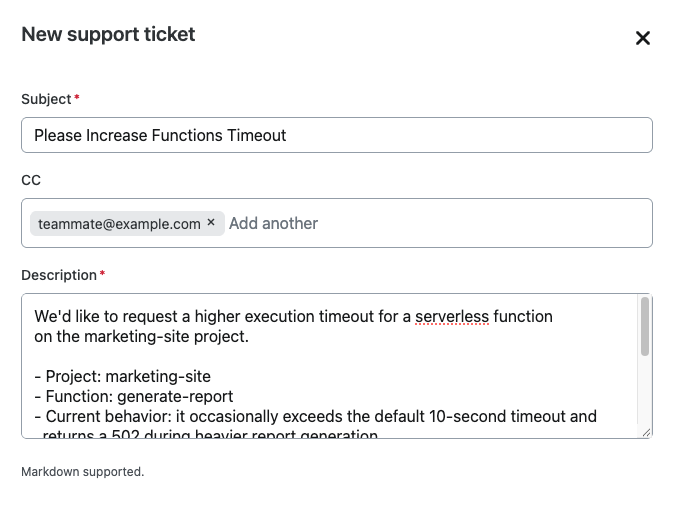
After you submit the ticket, it appears in your ticket list with a status of Open.
Write a clear request
Section titled “Write a clear request”To help our support team resolve your request faster, please include:
- What you were trying to do and what happened instead
- The affected project, team, or domaindomainThe web address people use to visit your site, such as yoursite.com.
- Steps to reproduce the issue
- Any error messages, request IDs, or timestamps
Review and track your tickets
Section titled “Review and track your tickets”The ticket list has Subject, Requester, Status, Created, and Updated columns. Select a ticket to open it and read the full conversation, including replies from the support team.
Ticket statuses
Section titled “Ticket statuses”Each ticket shows one of three statuses:
- Open: the support team has your request and is working on it
- Awaiting customer response: the support team is waiting on a reply from you
- Closed: the support team has resolved the request
Search and sort tickets
Section titled “Search and sort tickets”To find a specific ticket, enter a keyword in the Search tickets field.
To change the list order, use the sort menu. You can sort by Created date or Last updated, with the Newest or Oldest tickets first.
Filter tickets
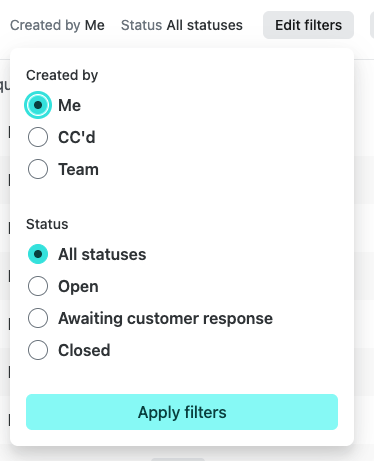
Section titled “Filter tickets”Select Edit filters, choose your filters, then select Apply filters:
- Created by: show tickets from Me (tickets you created), CC’d (tickets that list you as a CC), or Team (go to View your team’s tickets)
- Status: show All statuses, Open, Awaiting customer response, or Closed
View your team’s tickets
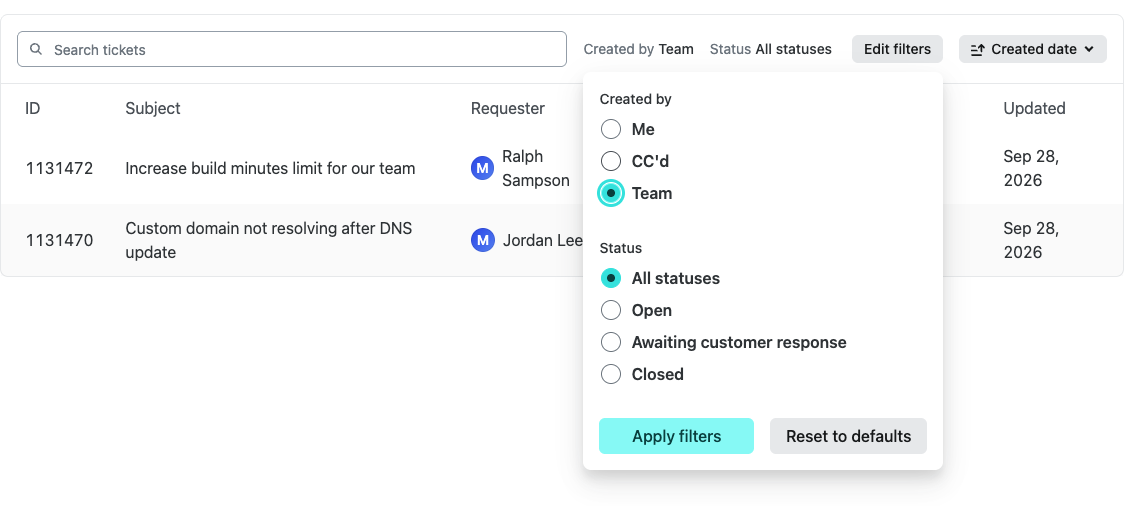
Section titled “View your team’s tickets”If you’re a Team Owner, you can set the Created by filter to Team to find every ticket created by members of your team, not just your own. Use the Requester column to find out who created each ticket.
Reply to a ticket
Section titled “Reply to a ticket”When the support team replies to your ticket, you can respond directly from the Support Hub.
- Open your support tickets.
- Select the ticket you want to reply to. To find it, go to Search and sort tickets.
- In the Reply field, enter your message. The reply supports Markdown.
- Select Update ticket.
Your reply appears in the conversation thread, and Netlify sends it to the support team.
Other ways to contact support
Section titled “Other ways to contact support”You can contact Netlify Support on any plan, including Free plans:
- Support form: submit a request through the Netlify Support page. Select the topic that matches your request.
- Email: send your request to support@netlify.com. Use the email address associated with your Netlify account so the support team can find your account details.
For quick answers about using Netlify, you can also use Ask Netlify.
More resources
Section titled “More resources”Did you find this doc useful?
Your feedback helps us improve our docs.