

Learn how to make changes and iterate on an existing project with your preferred AI agent using Agent Runners.
Prerequisites
Section titled “Prerequisites”Before you begin, you must have the following:
- a Netlify team account with a Credit-based plan and some available credits
- a Team Owner, Developer, Internal Builder, or Publisher role on your Netlify team
- Netlify AI features enabled
Overview
Section titled “Overview”This guide will help you make changes to an existing project through Agent Runners in your Netlify project dashboard.
If you want to create a new project with an AI agent, check out our Agent Runners quickstart for new projects.
1. Start an agent run
Section titled “1. Start an agent run”To start an agent run to make changes to your project, follow these steps:
- Go to your Netlify project dashboard. Under Build with an AI agent, select your preferred AI agent, such as Claude Code, Google Gemini, or OpenAI Codex.
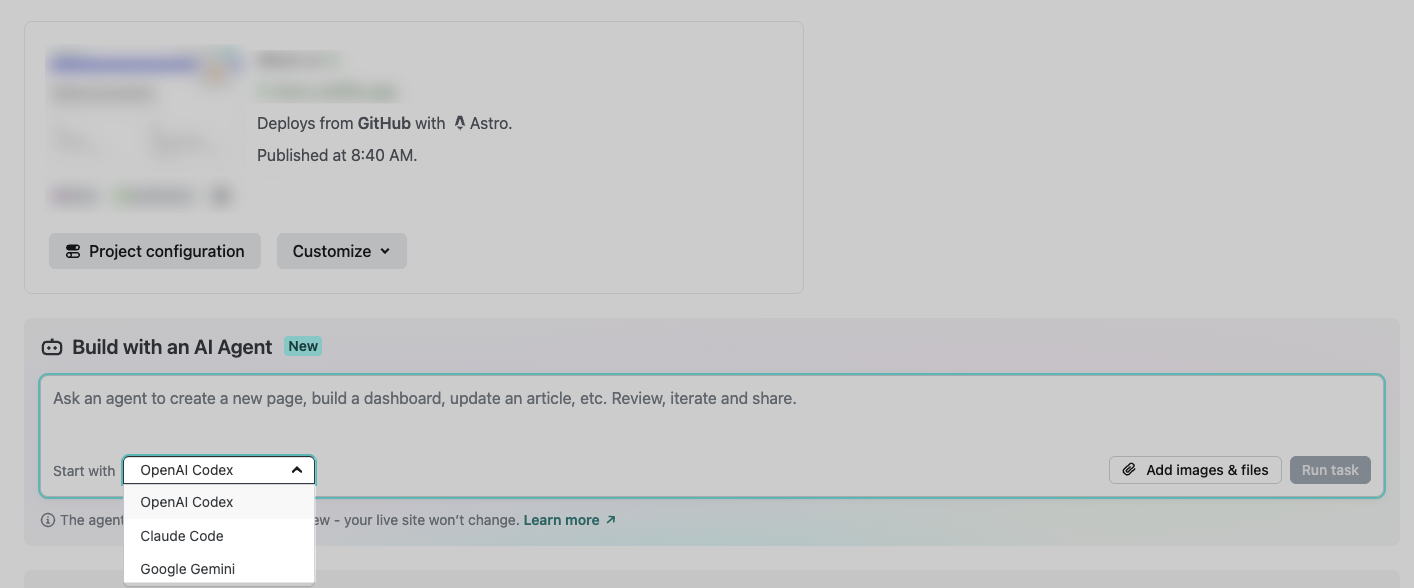
- Add your prompt. For examples of prompts, check out our prompt examples. You can optionally add more context as a file or image. Or you can add project context that applies to all agent runs, such as project-specific prompt guidelines or a link to a publicly available design system or style guide.
- Choose Run task.
- Your chosen AI agent will complete the task asynchronously and notify you when it’s done. At this point, you can wait or take care of other tasks.
2. Check the status of your agent run
Section titled “2. Check the status of your agent run”To check the status of your agent run, go to the Agent Runs tab in your Netlify project dashboard. Then choose your agent run and check the log for the current status.
You can expand an individual agent run to view its credit usage. Note that credit usage for a run may take a brief moment to appear after the run begins. Learn more in how pricing works.
3. Preview Agent Runners updates
Section titled “3. Preview Agent Runners updates”To preview your agent run’s proposed updates, check out the Files changed tab, which shows you the changes that the agent made.
You can also preview your agent run’s proposed updates in a preview environment by choosing Open preview, which opens a Deploy Preview of your changes. The Deploy Preview URL for agent runs uses the format https://agent-[run-id]--my-site.netlify.app.
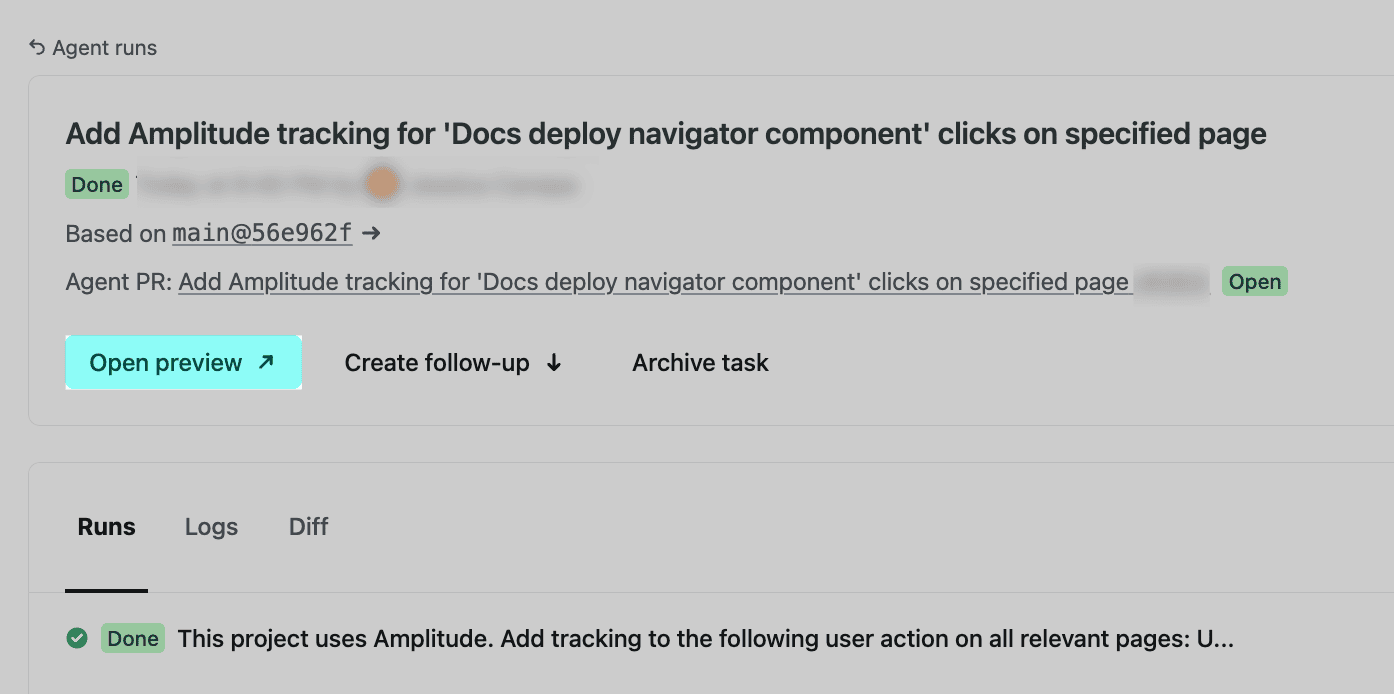
If your project is connected to a GitHub repository, then you can optionally open up a pull request or update an existing pull request with your updates from your agent run.
4. Ship your agent run updates
Section titled “4. Ship your agent run updates”To ship your agent run updates, you have two options:
- For projects using Git & GitHub: Open a pull request or update an existing pull request with your updates from your agent run. When you merge your pull request into your production branch, Netlify publishes your changes to your production site for you.
- For projects without Git: You can ship your agent run updates directly by deploying a new build by zip file. Learn more about this deployment method in this guide.
Did you find this doc useful?
Your feedback helps us improve our docs.