

For the complete Netlify documentation index, see llms.txt. Markdown versions of any documentation page are available by appending .md to its URL. Get up and running quickly with the new Netlify experience, whether you’re making a new app or making changes to an existing app.
Create a new app on Netlify
Section titled “Create a new app on Netlify”To create a new app on Netlify, you have several options from the Netlify home dashboard:
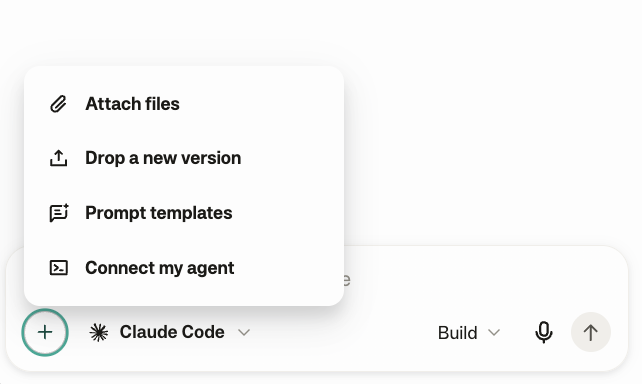
- If you’re starting from scratch: Write or dictate your prompt describing your new app. You can choose an agent to build with and add files or images.
- If you already have files for your app to start with: To publish from a file or folder, choose Drop files to deploy.
- If your app’s code lives in a GitHub repository: To publish merged pull requests from your hosted Git repository, choose Import from Git.
- If you want to publish from an agent you’re already using: Choose Connect your AI agent.
- If you want to publish from your terminal: In your terminal, enter
npx netlify deploy.
Make changes to an existing app
Section titled “Make changes to an existing app”If your app is already on Netlify:
-
Go to Apps and select your app from the apps list.
-
Select New version.
-
Optionally, choose a specific agent and model and attach any files.
-
Describe your changes and submit. You can preview your changes as you prompt.
-
Decide if you want to keep your app private, such as for an internal tool. If you want to keep the app private, go to Manage > Your app > Who can see it to review your options.
-
When you’re ready to go live, choose Publish.
Next up
Section titled “Next up”- Give your app a real web address: Go to DomainsDomainsThe web address people use to visit your site, such as yoursite.com. to buy a domain for your app. We’ll handle making it secure for you with HTTPSHTTPSThe secure protocol, enabled by SSL, that encrypts data transferred between a browser and your site. protection and using Netlify DNSDNSThe system that translates a domain name like yoursite.com into the address computers use to find your site..
- Share your app: When you’re ready, you can quickly share your app by choosing the share icon next to your profile in the top right.
- Invite a team: To build with others as you grow, from your apps home, choose your team name and select Members.
Did you find this doc useful?
Your feedback helps us improve our docs.