

For the complete Netlify documentation index, see llms.txt. Markdown versions of any documentation page are available by appending .md to its URL. If you have custom proxy servers that multiple visitors use to connect to your site, configure Trusted Proxies to prevent Netlify’s network protections from blocking your proxy’s IP addresses.
Understand trusted proxies
Section titled “Understand trusted proxies”Netlify has an extensive set of network-level protections to ban various kinds of high-volume bots and DDoS attacks, without any customer action or configuration needed. Requests banned by this mechanism do not spam your observability, logs, or web analytics data.
However, some customers have a setup where considerable traffic from multiple users is arriving via specific servers acting as a proxy. This is typically done to match organizational requirements or pre-existing systems.
In such a case, if Netlify is not aware that a source IP address is acting as a legitimate proxy, it may decide to ban or throttle that source, because its behavior does not match a typical client.
If the proxy server/s belong to a common CDNCDNA network of servers around the world that delivers your site’s files from the location closest to each visitor. network, cloud provider or a dedicated WAF service (e.g., Cloudflare, Akamai, Fastly, Bunny.net, Imperva, etc.) Netlify automatically detects this and adapts its network protections accordingly, to avoid false positives. No action is required on your end.
However, if you have set up your own proxy servers, and considerable traffic is flowing via these servers, you're strongly encouraged to configure the list of source IP addresses and IP ranges which Netlify should regard as trusted proxies.
Configure trusted proxies
Section titled “Configure trusted proxies”To unlock trusted proxies configuration for your team, please contact support to verify that your setup requires this feature.
Once the feature is enabled for you, users with a Team Owner role can configure IP ranges or specific addresses, and modify that list over time as needed.
Trusted proxies can be configured at either the team level, applying to all sites under that team, or for a specific site. At each level, you can define any combination of single IP addresses and ranges which in total amount to up to 3,072 single IP addresses.
If you define trusted proxies for your team and additionally define an additional trusted proxy for a specific site, then both lists of trusted proxies are applied to that site.
Configure trusted proxies for a team
Section titled “Configure trusted proxies for a team”To configure trusted proxies for all sites in a team, go to
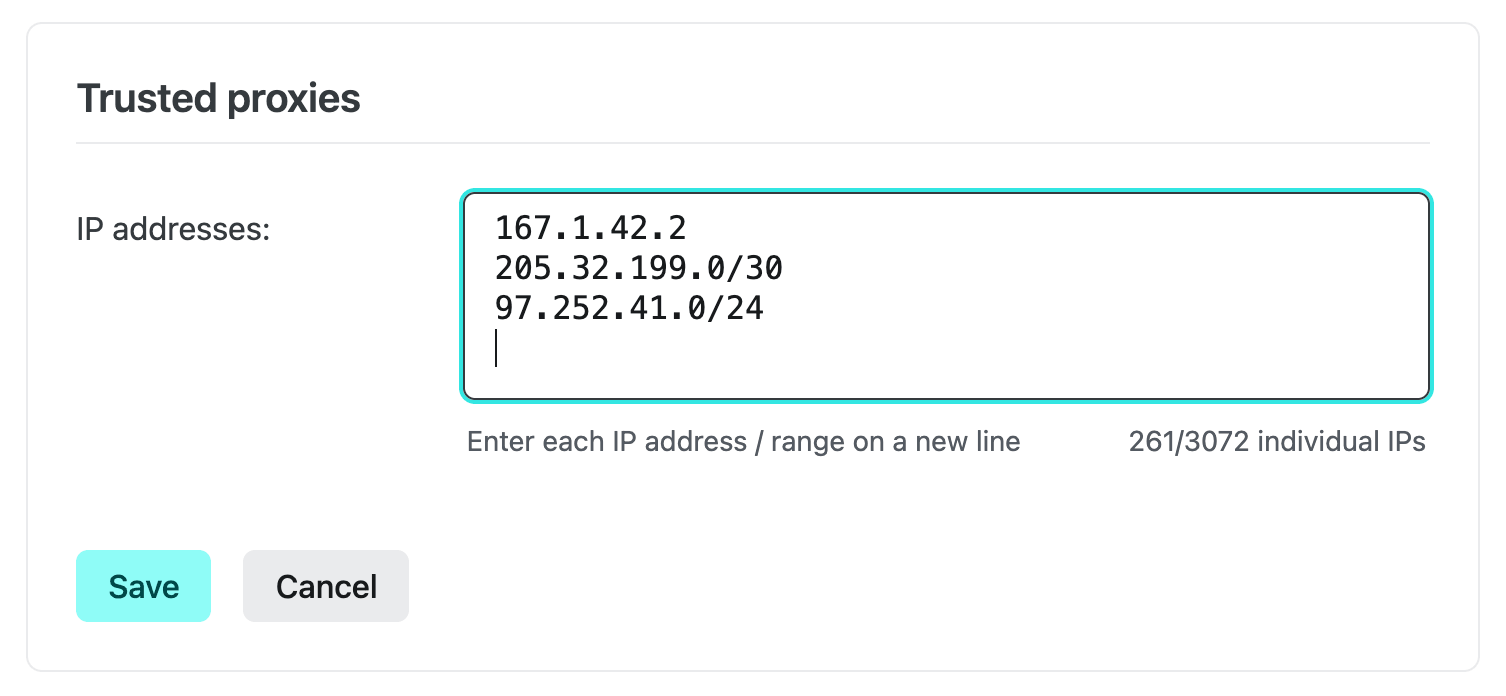
In the text box that appears, each IP address or range should be in one line. Both IPv4 and IPv6 addresses are supported.
To specify a range, use CIDR block notation. For example:
11.22.34.1/24stands for any address that starts with11.22.34.<x>, or up to 256 different IPv4 addresses.- For IPv6,
2001:db8:1234:5678::/120spans 256 addresses from2001:db8:1234:5678::0to2001:db8:1234:5678::ff.
In the screenshot above, note that both a single IPv4 and a CIDR block with a /24 subnet mark are defined, amounting to 257 allowed addresses out of the 3,072 allowed in total.
Configuration changes are applied immediately after clicking Save.
Configure trusted proxies for a site
Section titled “Configure trusted proxies for a site”To set trusted proxy addresses for a specific site only, go to
The interface is the same as when you configure trusted proxies for all sites in your team.
Limits
Section titled “Limits”Access to this feature is provided after contacting Netlify support to verify your needs.
At each level (site or team), up to 3,072 IP addresses can be defined via any combination of CIDR blocks and single addresses in IPv4 or IPv6 format.
If you use the maximum allowed total for both a given site and its team, that means a total of 6,144 addresses are considered as trusted proxy addresses for that site.
Did you find this doc useful?
Your feedback helps us improve our docs.