

For the complete Netlify documentation index, see llms.txt. Markdown versions of any documentation page are available by appending .md to its URL. The Netlify Database dashboard is the central place for inspecting and managing your database from the Netlify UI. It surfaces real-time usage metrics, gives you a per-branch view of your data, and exposes runtime settings like auto-scale compute and sleep on inactivity.
From your project dashboard, in the left sidebar, select Data & Storage > Database.
Monitor usage
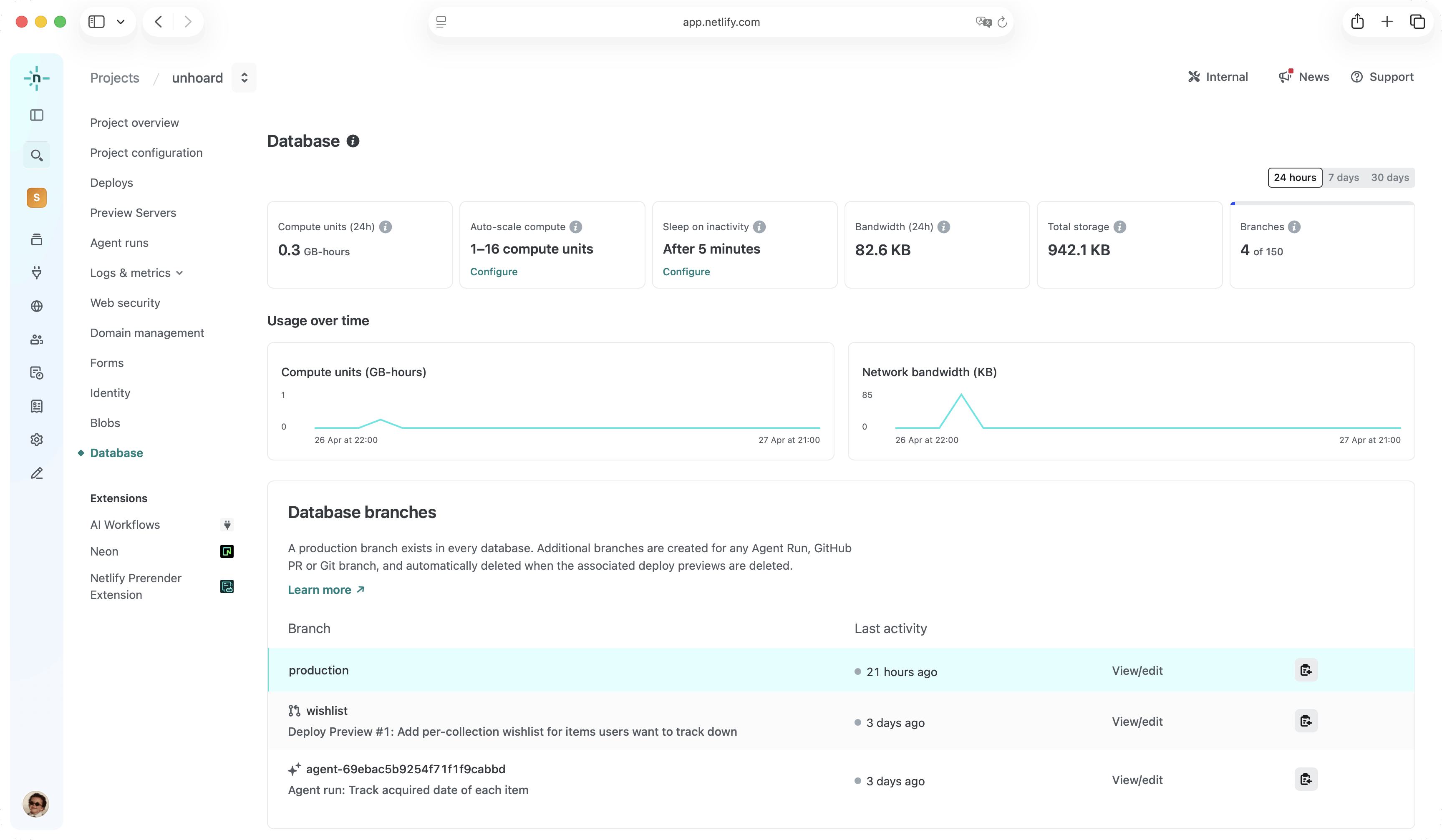
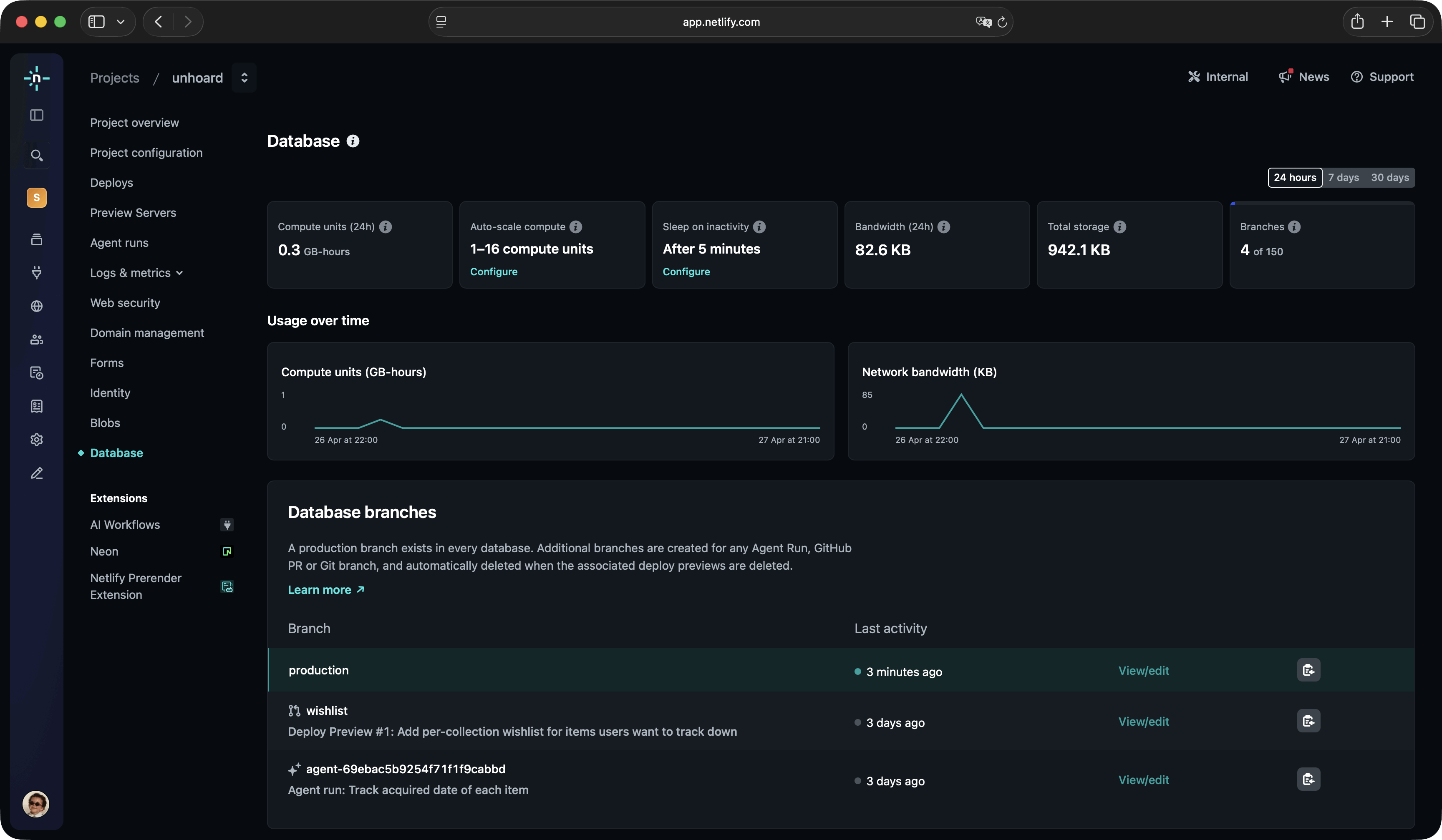
Section titled “Monitor usage”The top of the page shows real-time stats for your database over the selected time period (24 hours, 7 days or 30 days):
- Compute units — total processing time consumed
- Bandwidth — total network data transferred in and out of the database
- Total storage — total disk space used by your data
- Branches — the number of active branches, including how close you are to your plan's branch limit
You'll also see at-a-glance status for Auto-scale compute and Sleep on inactivity.
View and edit data
Section titled “View and edit data”Use the embedded database editor to view, edit or delete rows on any of your database tables. Select any of your database branches — production, a deploy preview's branch, or an agent runagent runA single task or batch of tasks you or a team member prompted an AI agent to complete.'s branch.
See View and edit data for the full walkthrough.
Configure runtime settings
Section titled “Configure runtime settings”The dashboard exposes the two runtime settings that control how much compute your database uses and when it pauses:
- Auto-scale compute — set how much compute your database can use
- Sleep on inactivity — set how long the database waits when idle before going to sleep
Both settings require a Pro or higher plan. On Free and Personal plans, the UI shows the current defaults but the controls are read-only.
Manage branches
Section titled “Manage branches”The dashboard lists every active database branch. For each branch you can see when it was last active, what is the deploy or agent run that created it and view or edit its data, and copy its connection string.
Restore from a backup
Section titled “Restore from a backup”Backups appear on the dashboard alongside the rest of your database management surface. See Backup and recovery for retention policies and the restore flow.
Delete the database
Section titled “Delete the database”A dedicated section at the bottom of the page lets Team Owners permanently delete the database. Deletion removes all data across every branch and snapshot and cannot be undone.
Permissions
Section titled “Permissions”What you can see and do on the dashboard depends on your role. See Access control for the per-action breakdown.
Did you find this doc useful?
Your feedback helps us improve our docs.