

For the complete Netlify documentation index, see llms.txt. Markdown versions of any documentation page are available by appending .md to its URL. Database branches are designed to be ephemeral, isolated places where you and your team can freely add, edit, and delete data while experimenting with a feature — without ever worrying that an in-progress test, an agent runagent runA single task or batch of tasks you or a team member prompted an AI agent to complete., or a debugging session will leak into production. That isolation is a linchpin of how Netlify Database lets you move fast.
There are situations, though, where data that lives on a non-production branch is exactly what you'd like to see on your live site. For example:
- You spent time entering records on a branch that you don't want to lose when the branch is deleted.
- You want to preview a set of data changes on your live application before sending them to production. You start a new branch, make the edits in the app itself or in the Browse data tab in the Netlify UI, and share the deploy preview URL with your team. Once everyone agrees the changes look right, you apply them to production in a few clicks.
- You kicked off an agent run that bulk-imported data into your database (for example, parsing a spreadsheet) and you'd like that data on your live site.
- You have a chunk of seed data that you want to add to production once but don't want to bake into a database migration.
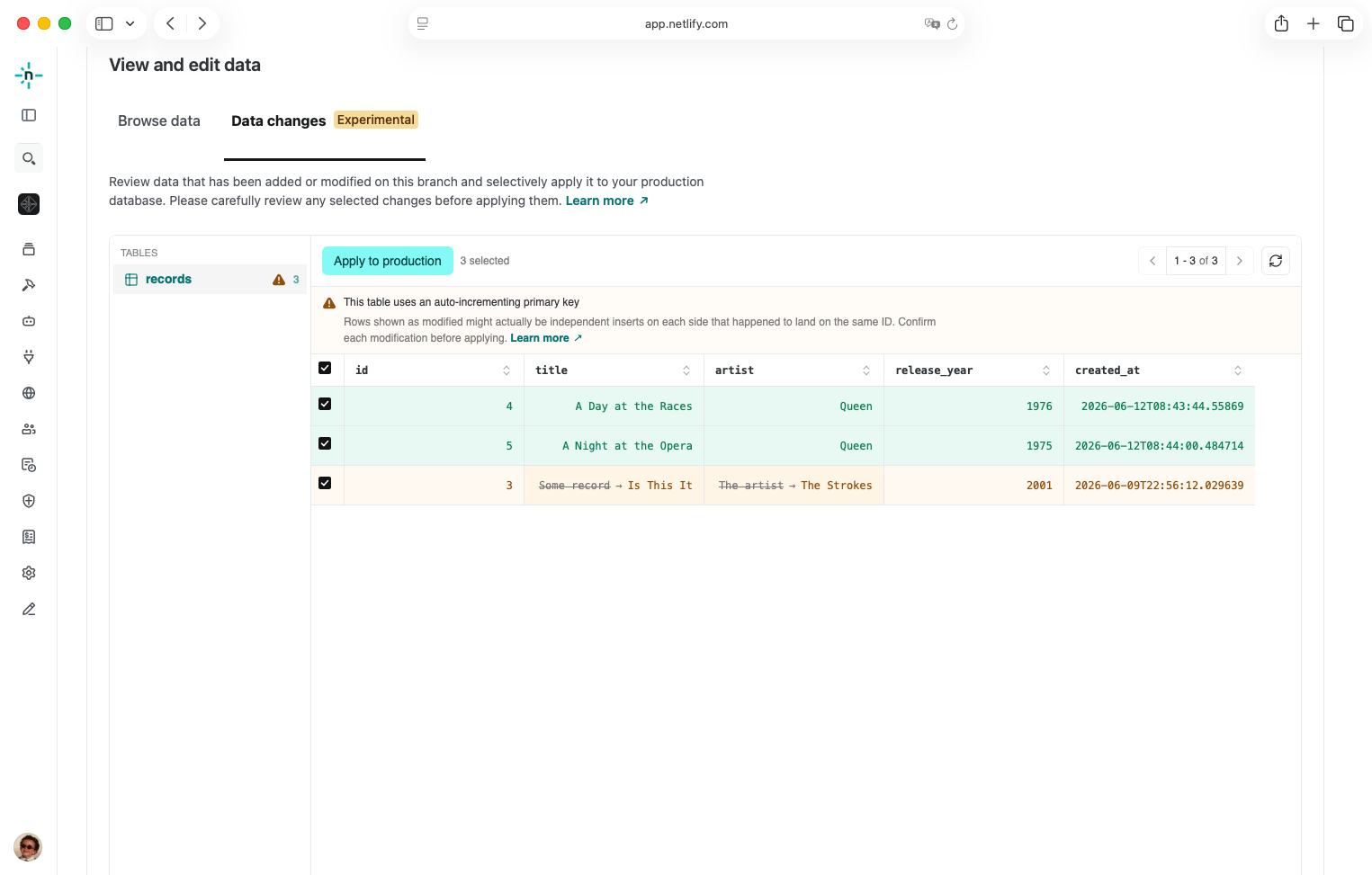
The Data changes tab is where you do this. It shows the rows that have been added or modified on the branch compared to production, and lets you pick which of those changes to apply to your production database.
Open the Data changes tab
Section titled “Open the Data changes tab”- From your project dashboard, in the left sidebar, select Data & Storage > Database.
- In the Database branches section, click on the non-production database branch you want to inspect.
- Switch to the Data changes tab at the top of the editor.
The production branch does not have a Data changes tab. Comparison is always made against production, so it can only be opened from another branch.
Find changes
Section titled “Find changes”Select Find changes to start the comparison. Netlify creates a temporary snapshot of production, compares it against the branch you're on, and lists the rows that differ.
Depending on the size of your database, this can take a few minutes. Use the Refresh control in the toolbar to re-run the comparison after editing data on the branch.
For each table that has changes, the row diff shows two row classifications:
- Inserted: rows present on the branch but not on production
- Modified: rows present on both, with at least one column value differing
Rows that exist on production but not on the branch are not surfaced. The Data changes flow only adds or updates rows in production; it does not delete production data.
Apply changes to production
Section titled “Apply changes to production”- In the sidebar, select a table that has changes.
- Tick the rows you want to apply to production. The toolbar shows the running count of selected changes across all tables.
- Select Apply to production and confirm.
Netlify writes the selected inserts and updates to your production database in a single transaction. If any row fails to apply, the whole transaction is rolled back, so production is never left in a half-applied state.
Limitations
Section titled “Limitations”Some tables can be compared but not applied to production. The sidebar shows a warning icon next to these tables, and the row checkboxes are disabled.
Added or changed columns
Section titled “Added or changed columns”If a table's columns differ between the branch and production — for example, the branch has a new column, or a column's type has changed — the comparison still runs over the columns that exist on both sides, so you can see what data changed. But applying these rows to production is blocked until the schemas line up, since Netlify can't know how to populate the columns that only exist on one side.
In Netlify, schema changes reach production the same way any other code change does:
- For Git-based projects, when you merge the pull request that introduced the change.
- For non-Git projects, when you publish the agent run that introduced the change.
In both cases the migration is applied automatically as part of the publish. Once that happens, return to the Data changes tab and select Refresh; the table should then be applicable.
Incompatible tables
Section titled “Incompatible tables”Some tables can't be compared at all:
- The table doesn't have a primary key on either side, so Netlify can't reliably match rows.
- The primary-key columns themselves differ between branch and production.
- The table exists on one side but not the other.
These tables show up in the sidebar with a "blocked" indicator and a short explanation of why.
Auto-incrementing primary keys
Section titled “Auto-incrementing primary keys”Tables whose primary key is auto-incremented (SERIAL, BIGSERIAL, or GENERATED ... AS IDENTITY) can be applied, but they need extra care when reviewing modifications.
The branch and production mint new IDs independently from the same starting point, so a row classified as Modified might actually be two independent inserts (one on the branch, one on production) that happened to collide on the same ID. Netlify can't tell those apart from the data alone.
Tables with an auto-incrementing primary key show a warning icon in the sidebar. Review each modification on these tables carefully before applying it, since applying a modification will overwrite the corresponding row on production.
UUID primary keys
Section titled “UUID primary keys”If you're designing a new table and expect to use Data changes to bring rows from a branch into production, consider using UUIDs (uuid columns with DEFAULT gen_random_uuid()) as the primary key instead of a sequence-based integer. UUIDs are generated independently on each branch with vanishingly small odds of collision, so a row inserted on the branch keeps the same identity on production after it's applied — no ambiguity about whether a "modified" row is really one row or two.
UUID PKs aren't a fit for every schema, but for tables that are written from multiple branches they remove the entire class of ID-collision risk this section describes.
Size limits
Section titled “Size limits”To keep the comparison interactive, branches that exceed a size threshold can't be compared. The current limits are:
- Tables: up to 20 user tables on the branch
- Rows: up to 50,000 estimated rows across all tables on the branch
If the branch is over either limit, the Find changes flow stops with a message explaining which limit was hit. If your use case needs higher limits, please contact support.
Permissions
Section titled “Permissions”Opening the Data changes tab requires a role with database read access; applying changes to production requires database write access. See the database permissions table for the full breakdown.
Did you find this doc useful?
Your feedback helps us improve our docs.