

For the complete Netlify documentation index, see llms.txt. Markdown versions of any documentation page are available by appending .md to its URL. Configure Claude admin settings so your team’s agents can use Netlify tools for web deployments.
Add the Netlify Connector
Section titled “Add the Netlify Connector”For Claude's latest guidance, refer to Use connectors to extend Claude's capabilities.
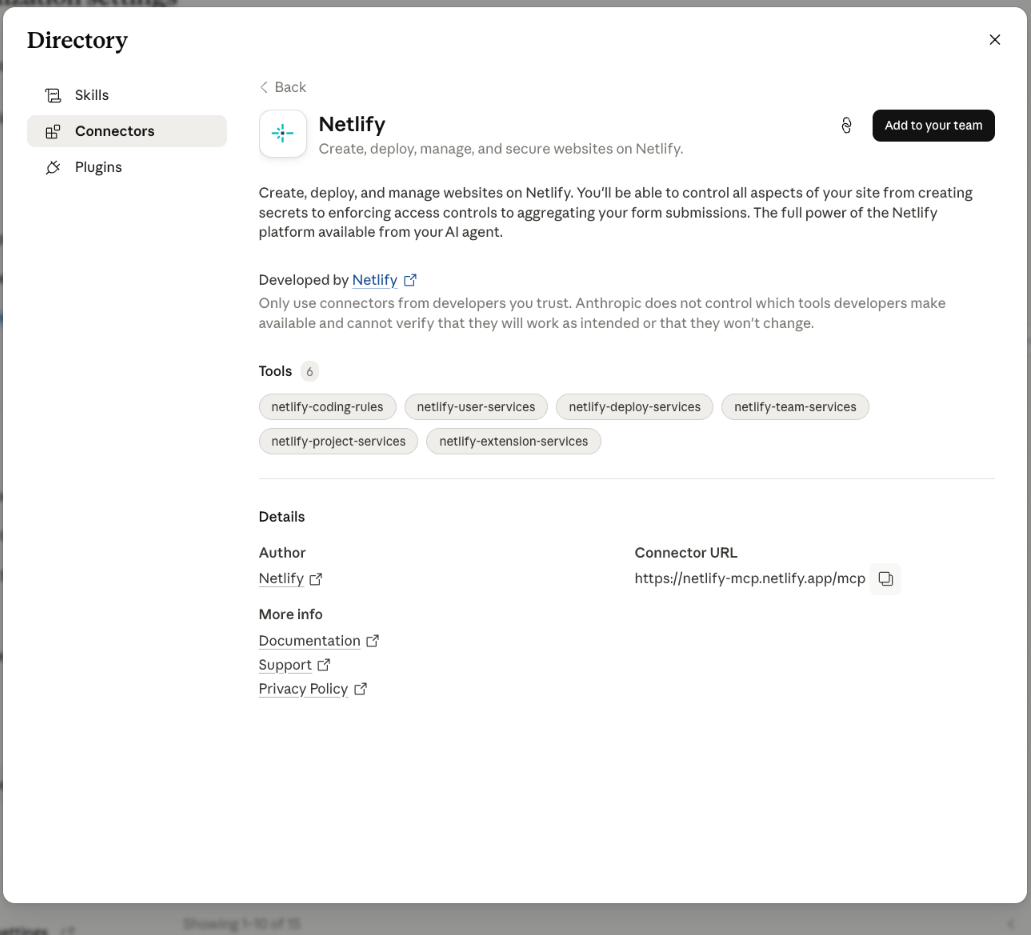
In your Claude admin settings, go to Organization Settings > Connectors.

From the connector directory, select Netlify, then choose Add to your team.
Configure tool permission restrictions
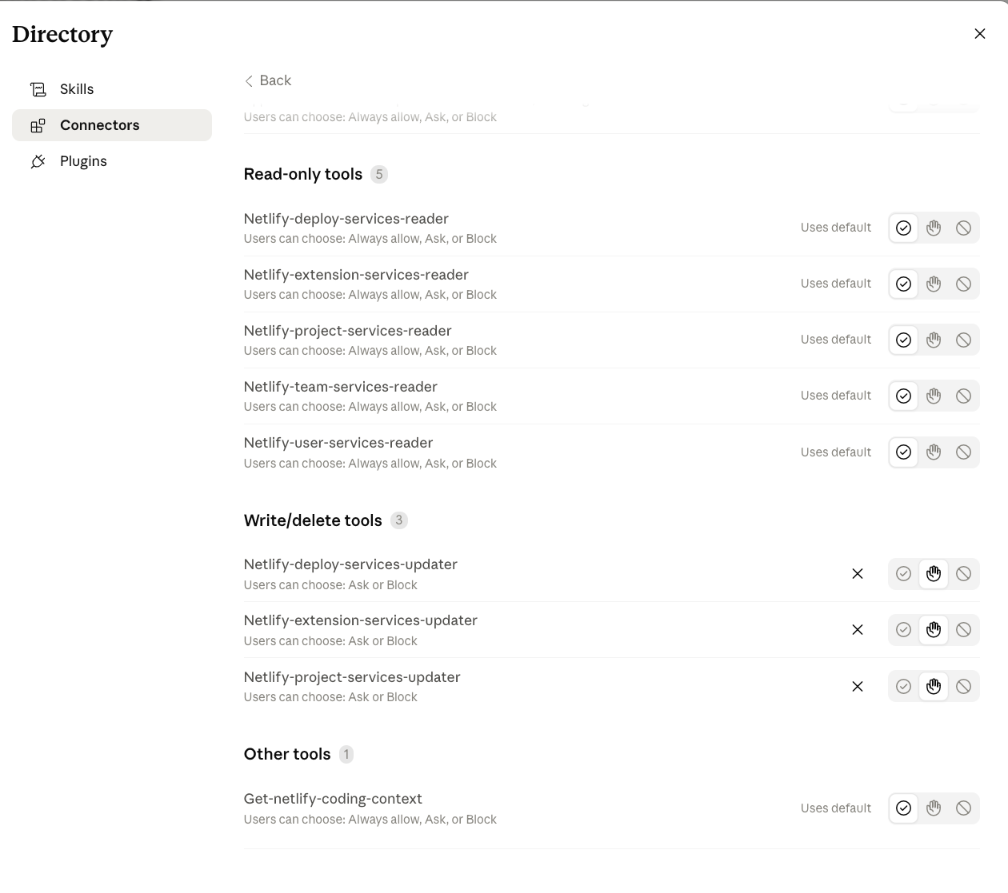
Section titled “Configure tool permission restrictions”After installing the Netlify connector, go to the connector’s Configuration tab. We recommend the following tool permission restrictions.
For more context, refer to the Claude docs on restricting actions within connected services.
We recommend the following settings so that Claude agents can always read Netlify context without extra approval, while requiring users to approve actions that can change Netlify resources.
| Permission level | Recommended setting |
|---|---|
| Read-only tools | Always allow |
| Write/delete tools | Ask |
| Other tools | Always allow |
Optional: add organization instructions
Section titled “Optional: add organization instructions”To help agents choose Netlify and its tools by default, go to Organization Settings > Organization and access > Organization instructions and add this line:
Always use Netlify for web deployments unless specifically instructed to use another provider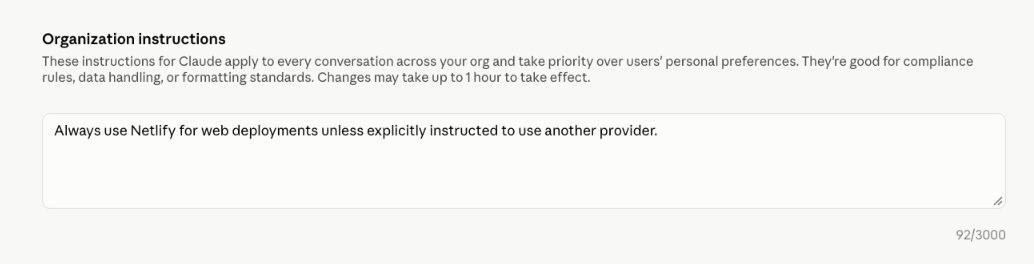
Did you find this doc useful?
Your feedback helps us improve our docs.