

For the complete Netlify documentation index, see llms.txt. Markdown versions of any documentation page are available by appending .md to its URL. Connectors let Agent RunnersAgent RunnersAn AI coding tool that makes changes to your site on your behalf, right from the Netlify dashboard. work with the third-party services you already use so that you can build from trusted sources and data, or set up ongoing services such as processing payments.
Use cases
Section titled “Use cases”Use connectors to do the following:
- Build from requirements you already have. Your agent can build from Notion docs or Linear issues you have access to.
- Work with data from your services. Your agent can pull a dataset from a service like Snowflake and build a dashboard or a reporting app from it.
- Set up features backed by an ongoing service. Your agent can create a payments checkout flow using Stripe for your app and upload product inventory.
And more based on extensive Connectors Directory
Available connectors
Section titled “Available connectors”Netlify supports over 150 connectors with support coming for more.
This list is a preview of our connector support:
Analytics & Data
- Algolia
- Amplitude
- Databricks
- Datadog
- Snowflake
Automation
- Clay
- Slack
- Zapier
Bookings and scheduling
- Calendly
- Cal.com
CRM
- HubSpot
- Salesforce
Email & campaigns
- Resend
- MailerLite
Payments
- PayPal
- Plaid
- Stripe
Project management
- GitHub
- Jira
- Linear
- Notion
For a full list of the latest available connectors, check out our Connectors Directory or you can go to your Project Overview > Connectors and open the drop-down menu to see what's available.
How connectors work
Section titled “How connectors work”You can only connect to a connector using your own account or API keyAPI keyA unique code that identifies your app when it makes requests to an external service. with that service. You need an existing account with each service you want to connect.
Your connections are scoped to your Netlify personal user ID for a specific project.
Netlify doesn’t create or manage your accounts with third-party services. Each connection uses OAuth or API credentials to authorize access.
Use a new connector in an agent run
Section titled “Use a new connector in an agent run”Before you begin, you must have the following:
- access to Agent Runners on a Credit plan or Enterprise plan using credits
- an account with each service you want to connect, with permission to access the data or features you want your agent to use
-
Start an agent runagent runA single task or batch of tasks you or a team member prompted an AI agent to complete. with a prompt that asks your agent to use a service, such as
Read the Linear issue WEB-142 and build the landing page it describes.Check out example prompts for more examples. -
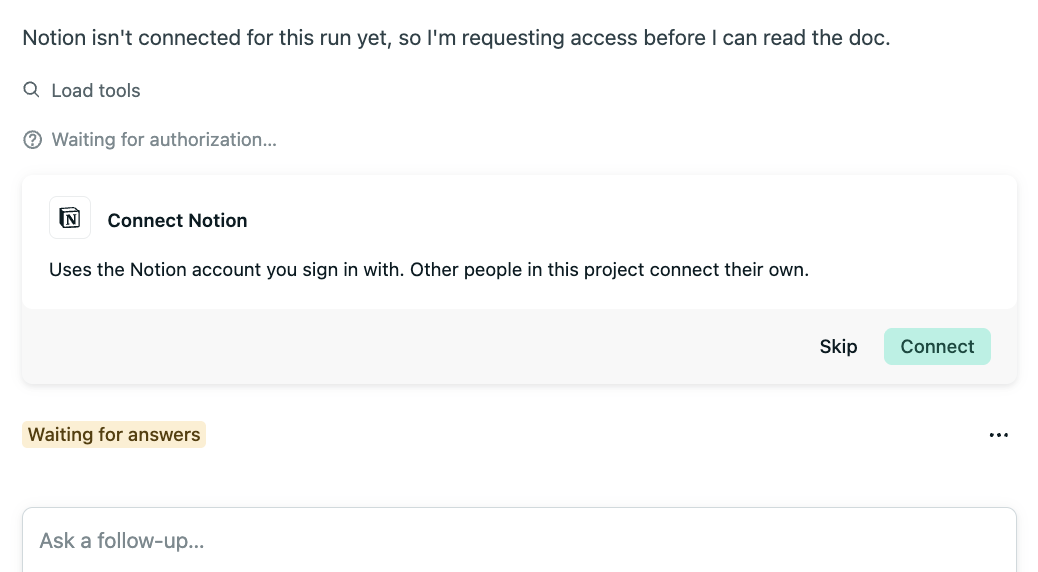
When your agent prompts you to connect the service, follow the prompts to connect it.
-
Once connected, your agent picks up and completes the task.
Your connection is saved to your personal user ID for this team, so your agent can use it across your other projects on that team without prompting you again.
Example prompts
Section titled “Example prompts”Use these examples as a starting point for prompts that use connectors.
Build a feature from a Notion spec
Section titled “Build a feature from a Notion spec”Review the spec in our Notion page “Saved searches” and implement the feature so it meets the requirements.Your agent prompts you to connect Notion if you haven’t already, then uses the spec to guide the implementation.
Build a landing page from a Linear issue
Section titled “Build a landing page from a Linear issue”Read Linear issue WEB-142 and build the landing page it describes.Your agent retrieves the issue and uses it as the brief. Your published page doesn’t need a connection to Linear.
Build a checkout flow with Stripe
Section titled “Build a checkout flow with Stripe”Create a product for our photography workshop at $150 and build a checkout page for it.Once you connect Stripe, your agent can create products, update prices, and build a checkout experience for your project.
Build a dashboard from Snowflake data
Section titled “Build a dashboard from Snowflake data”Pull last quarter’s sales by region from Snowflake and build a dashboard that charts it.Your agent retrieves the data and builds the dashboard with a snapshot of it.
Manage connectors
Section titled “Manage connectors”For a project
Section titled “For a project”You can review existing connectors you’ve set up for a project by going to Project Overview > Connectors.
You’ll find the connectors you’ve set up for that project and you can add more or remove existing connections.
You will only find connectors you’ve set up for the project and cannot see other connectors that people across your team have set up for this project.
For your user account
Section titled “For your user account”To review connectors across all the teams you belong to, go to User > Account settings > Applications > Connectors. From here you can revoke access to any connected service.
More resources
Section titled “More resources”Did you find this doc useful?
Your feedback helps us improve our docs.